After switching from Onboarding Mode to Advanced Career Mode, you’ll now take full control of your own company.
Welcome to the Company Dashboard — your central hub for managing every aspect of your airline: fleet, staff, jobs, finances, and more.
This screen gives you a quick overview of your company’s current situation and provides shortcuts to every major management area.
¶ 🧩 Overview
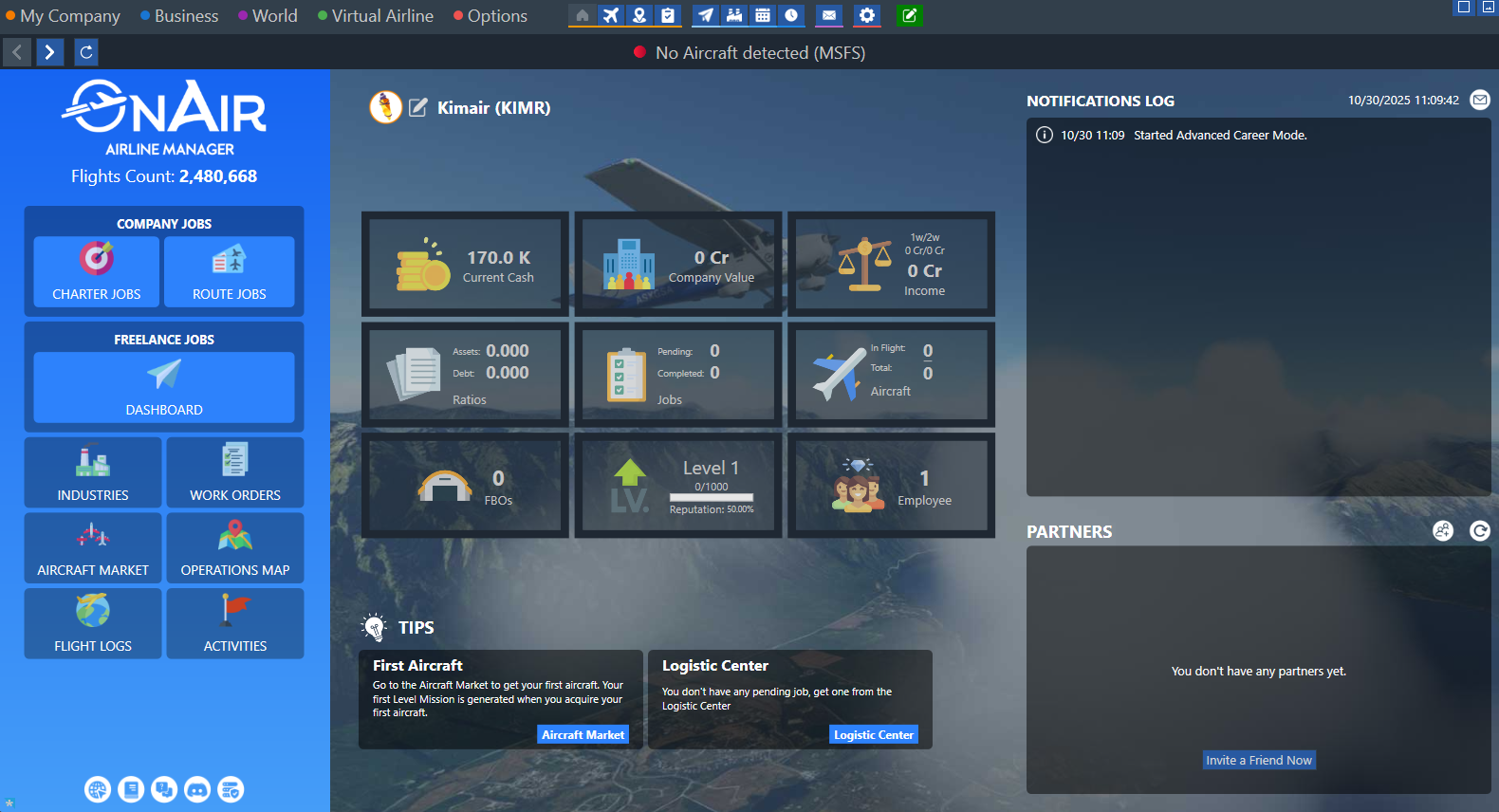
The dashboard gives you a summary of your company’s performance and immediate access to its main management features.
Information is grouped into clear sections, each representing a different aspect of your operations.
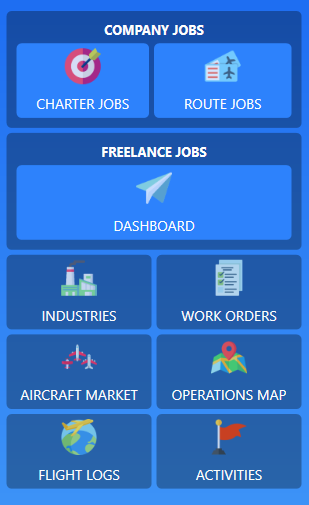
To the left-hand side, you’ll find large quick-action buttons for commonly used functions such as aircraft management, jobs, and FBOs.
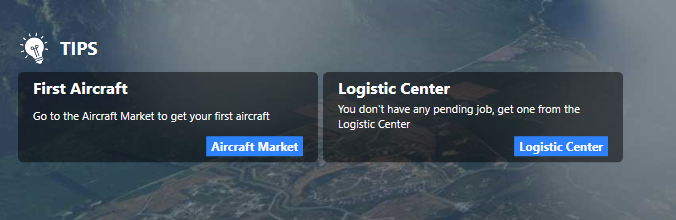
Along the bottom center, OnAir displays tips and hints to help you progress in your new company.
¶ 📊 Company Summary Tiles
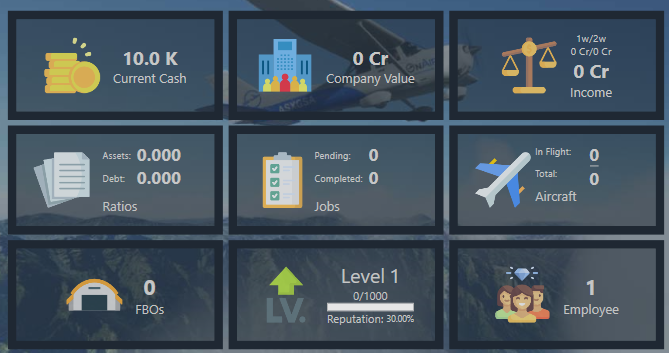
At the center of the dashboard, nine tiles display your company’s most important metrics at a glance:
¶ 💰 Current Cash
Shows your company’s current bank balance.
Click to open your Bank Statement for full details.
¶ ⚖️ Ratios
Displays your financial balance, comparing debt against owned aircraft and properties.
Click to view detailed breakdowns.
¶ 🏗️ FBOs
Shows how many active FBOs your company owns.
Click to open the FBO Management screen.
¶ 📈 Company Value
Represents the total worth of your company — combining cash, assets, and debts.
Click to access the Company Value report.
¶ 📦 Jobs
Summarizes how many jobs are pending, in progress, or completed.
Click to open the Pending Jobs screen.
¶ 🎓 Level
Displays your company level, progress bar, and reputation.
Click to access the Skills Tree and spend points to unlock new features.
¶ 💹 Income
Shows your profit history over the last week, two weeks, and since creation.
Click to open the Income Statement.
¶ ✈️ Aircraft
Summarizes your fleet — how many aircraft you own, rent, or currently have in flight.
Click to open My Aircraft.
¶ 👩✈️ Employees
Shows how many AI employees are currently hired in your company.
Click to access Employee Management.
¶ 🔔 Notifications
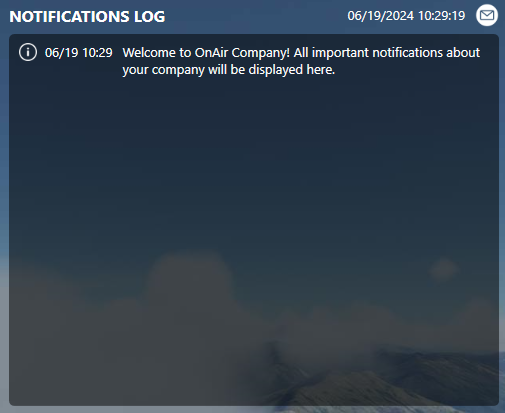
In the top-right corner, the Notifications Log keeps track of everything happening in your company:
- ✅ Jobs completed or expired
- 🛫 Aircraft bought, sold, or undergoing maintenance
- 🧰 Work orders started or completed
- 👨✈️ Employees hired or dismissed
¶ 🤝 Partners List
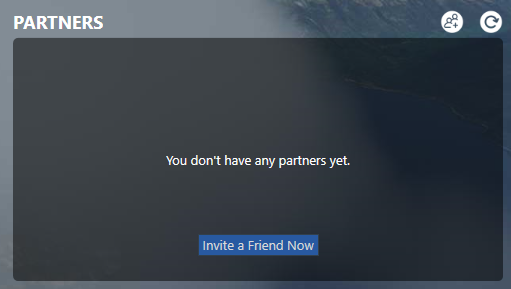
At the bottom-right, you’ll find your Partners list — similar to a friends list.
It shows any companies you’ve partnered with, their online status, and gives you shortcuts to their profile.
You can:
- View their company details
- Send messages
- Review flight logs
- Transfer credits between companies
¶ 🧭 Main Menu and Shortcuts
At the top of the dashboard — and visible on every screen — is the main menu and shortcut bar.
It displays the company you’re managing, the world you’re in, and provides quick access to your most frequently used sections.

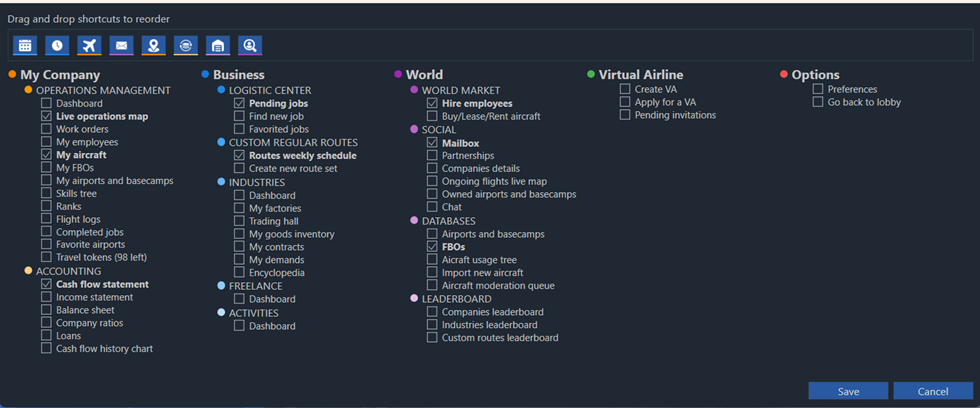
The shortcut bar is fully customizable, you can add, remove, or reorder icons to fit your play style and workflow.