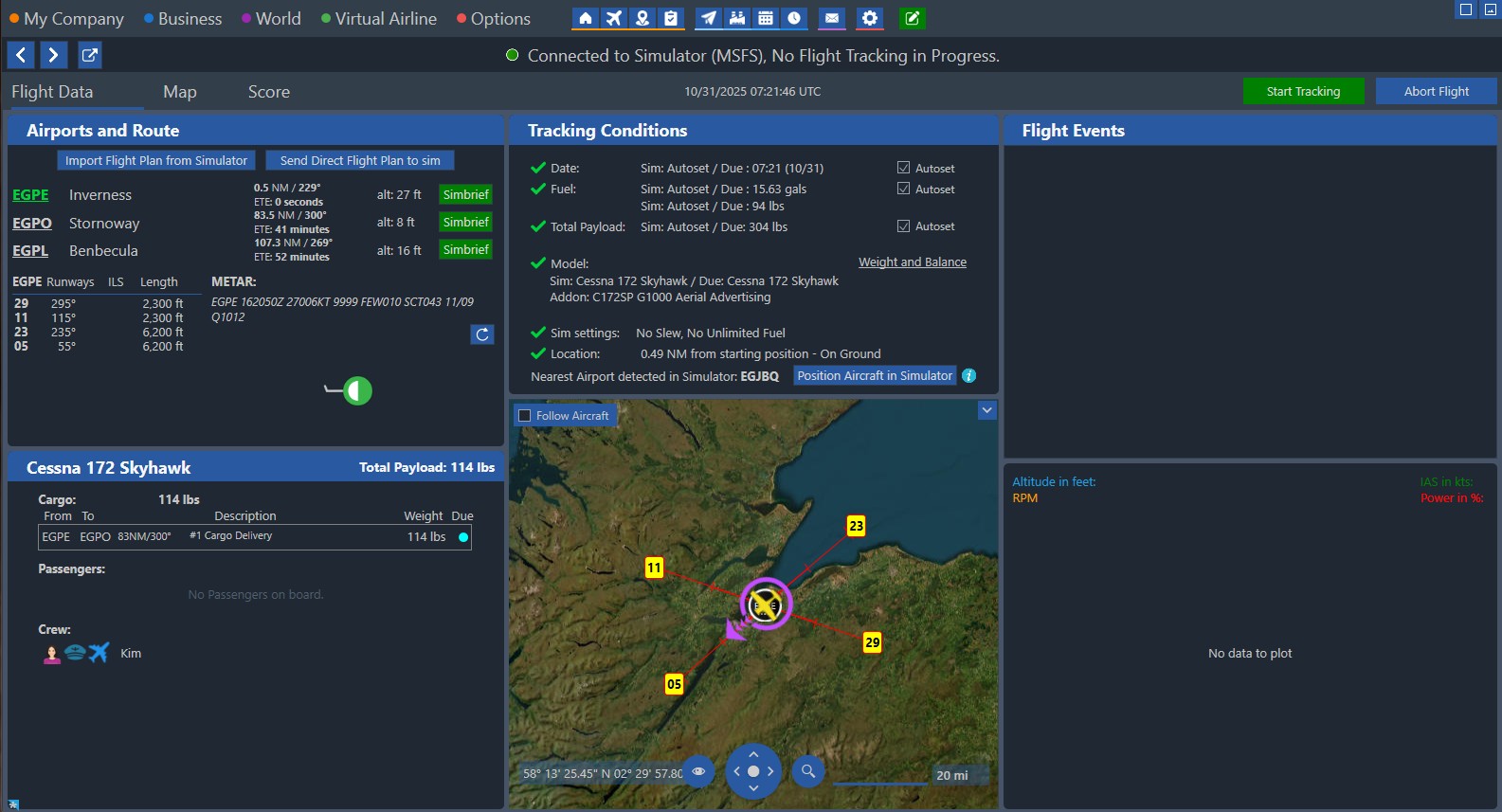
Once you click Fly Now, you’ll arrive on the Tracking Page.
This is where OnAir monitors your flight in real time — recording your performance, route, and results.
¶ ✅ Flight Tracking Conditions
Before tracking can begin, OnAir checks several key conditions to ensure everything matches between your simulator and the game.
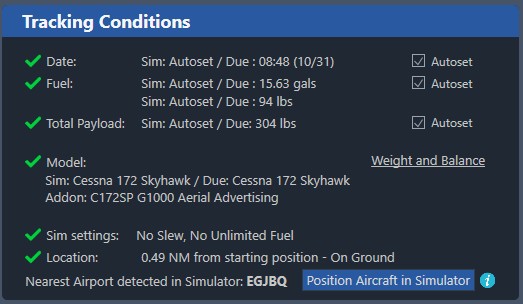
You must have:
- ✈️ The correct aircraft type loaded in your simulator
- ⛽ Approximately the same amount of fuel as shown in OnAir
- 📦 Matching payload and passengers
- 🛫 Your aircraft on the ground and within range of your departure airport
💡 If these conditions are not met, OnAir will not allow you to start tracking.
¶ 🧭 Syncing Fuel, Payload, and Time Automatically
You can use the Autoset checkboxes next to Date, Fuel, and Total Payload to let OnAir automatically match your simulator values.
If your aircraft supports this feature, OnAir will:
- Adjust your fuel and payload automatically
- Set your simulator date and time to match the OnAir flight plan
If Autoset is disabled for your aircraft, you’ll need to adjust these values manually using your simulator’s tools:
- EFB (Electronic Flight Bag) or
- FMC/MCDU (Flight Management Computer)
🧩 Each aircraft addon may have its own way of setting fuel and payload — check its documentation if needed.
When all parameters match, red ❌ indicators will turn into green ✅ ticks.
¶ 🟢 Starting the Flight
Once all checks are green, the Start Tracking button (top-right corner) becomes available.
Click it to begin recording your flight.

You’ll hear an audible confirmation when tracking begins.
If you forget to click manually, OnAir may start automatically as soon as you begin taxiing or taking off.
¶ 🗺️ Understanding the Tracking Map
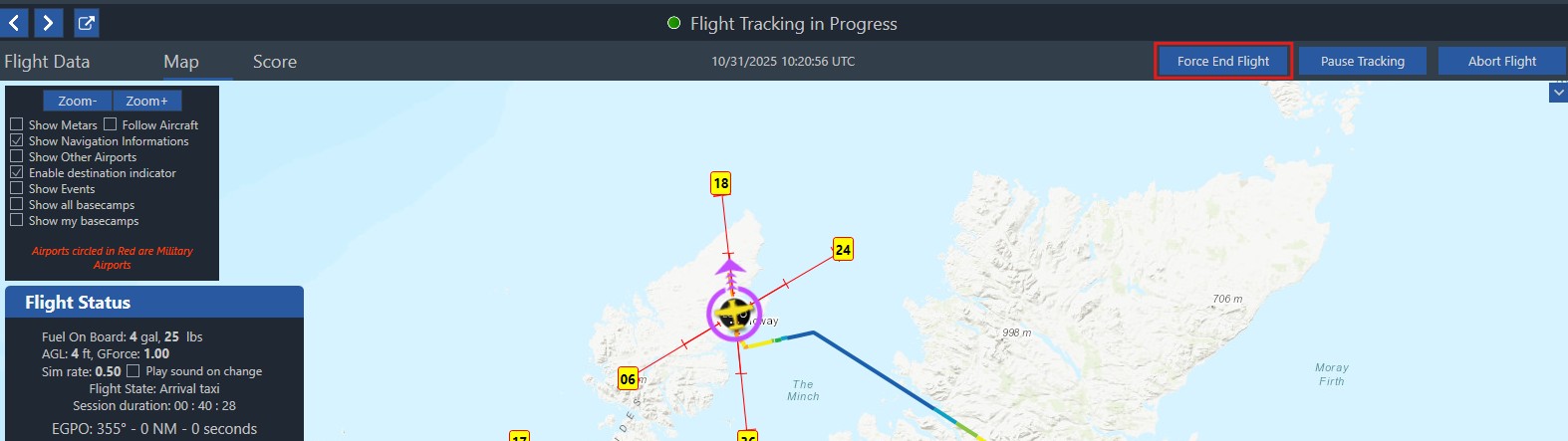
During the flight, OnAir displays your aircraft in real time with several visual indicators:
- 🔴 Red lines — Runway directions
- ⚪ Perpendicular markers — Distance from the runway (5, 10, 20 NM)
- 🟣 Purple line — Direct path to your destination airport
- 🟠 Orange line — Current aircraft heading
- 🟢 Green rings — Estimated position range in 5, 10, and 20 minutes
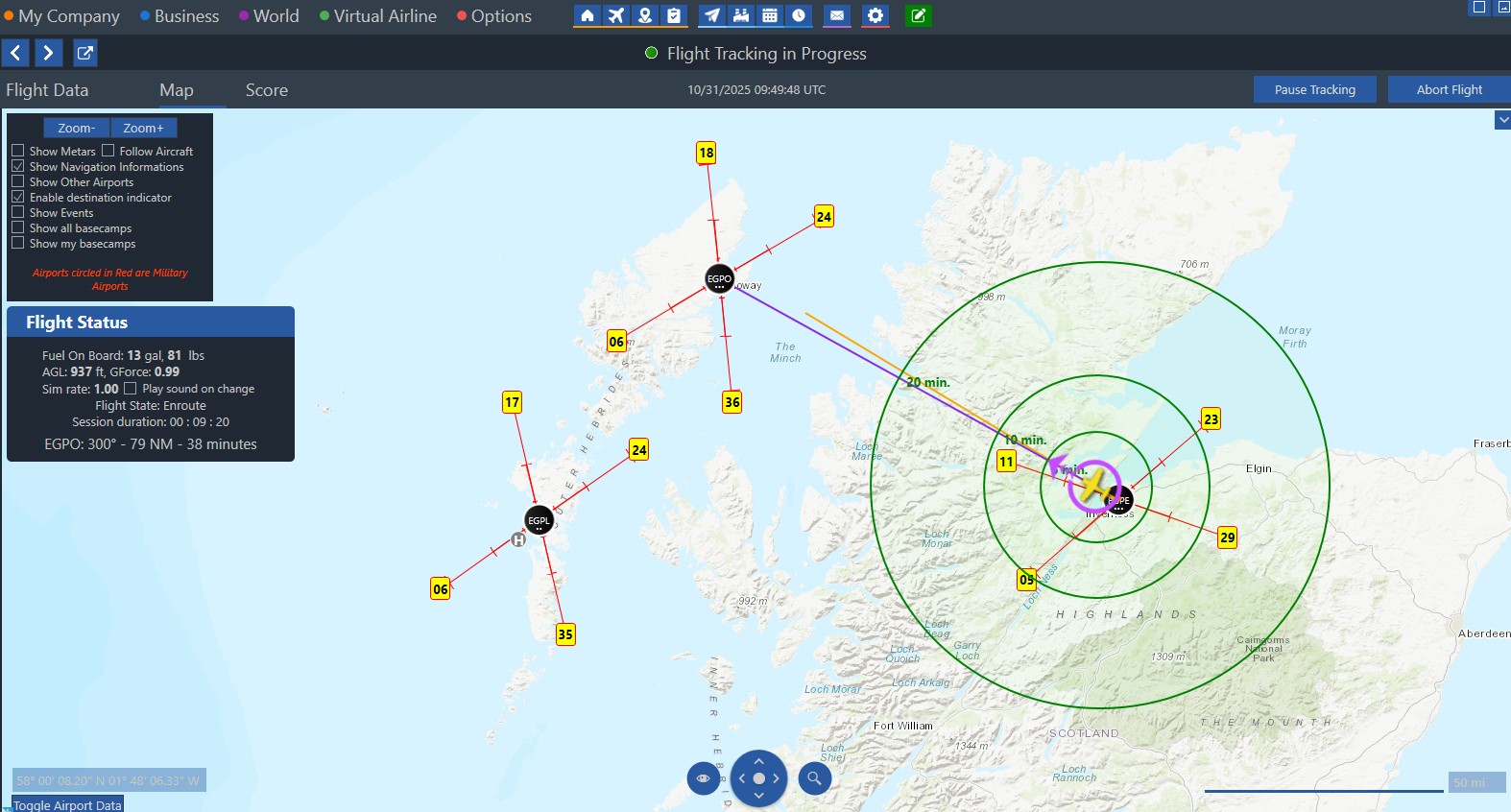
💡 You can zoom, pan, and follow your aircraft to monitor your progress live.
¶ 🎯 Live Flight Scoring
During flight tracking, you’ll notice live instructions and score updates displayed in real time.
These are part of OnAir’s Flight Scoring System, which evaluates your flight performance and affects your XP, reputation, and sometimes your company income.
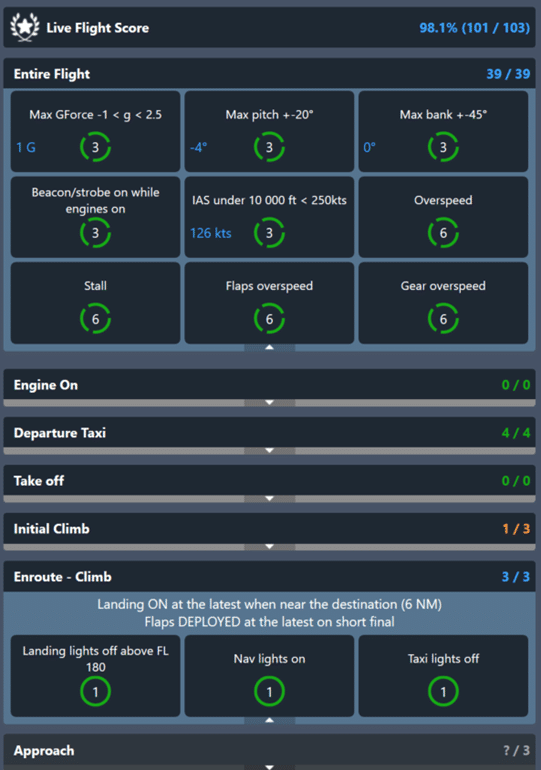
Your score is influenced by various factors, including:
- Flight stability and procedural accuracy
- Compliance with OnAir’s operational rules
- Landing smoothness (rate, G-force, and speed)
💡 A live score is continuously displayed during your flight — helping you monitor your performance and correct mistakes before landing.
At the end of each flight, a landing grade is calculated (Very Smooth → Very Hard) based on:
- Vertical speed at touchdown
- G-force impact
- Landing speed deviation
For the complete rules, score computation details, and tips for achieving better grades, see the dedicated page:
👉 Flight Score and Landing Grades →
¶ 🧭 MSFS In-Game Panel
If you are flying in Microsoft Flight Simulator, OnAir also includes an in-game panel for real-time tracking directly inside your cockpit.
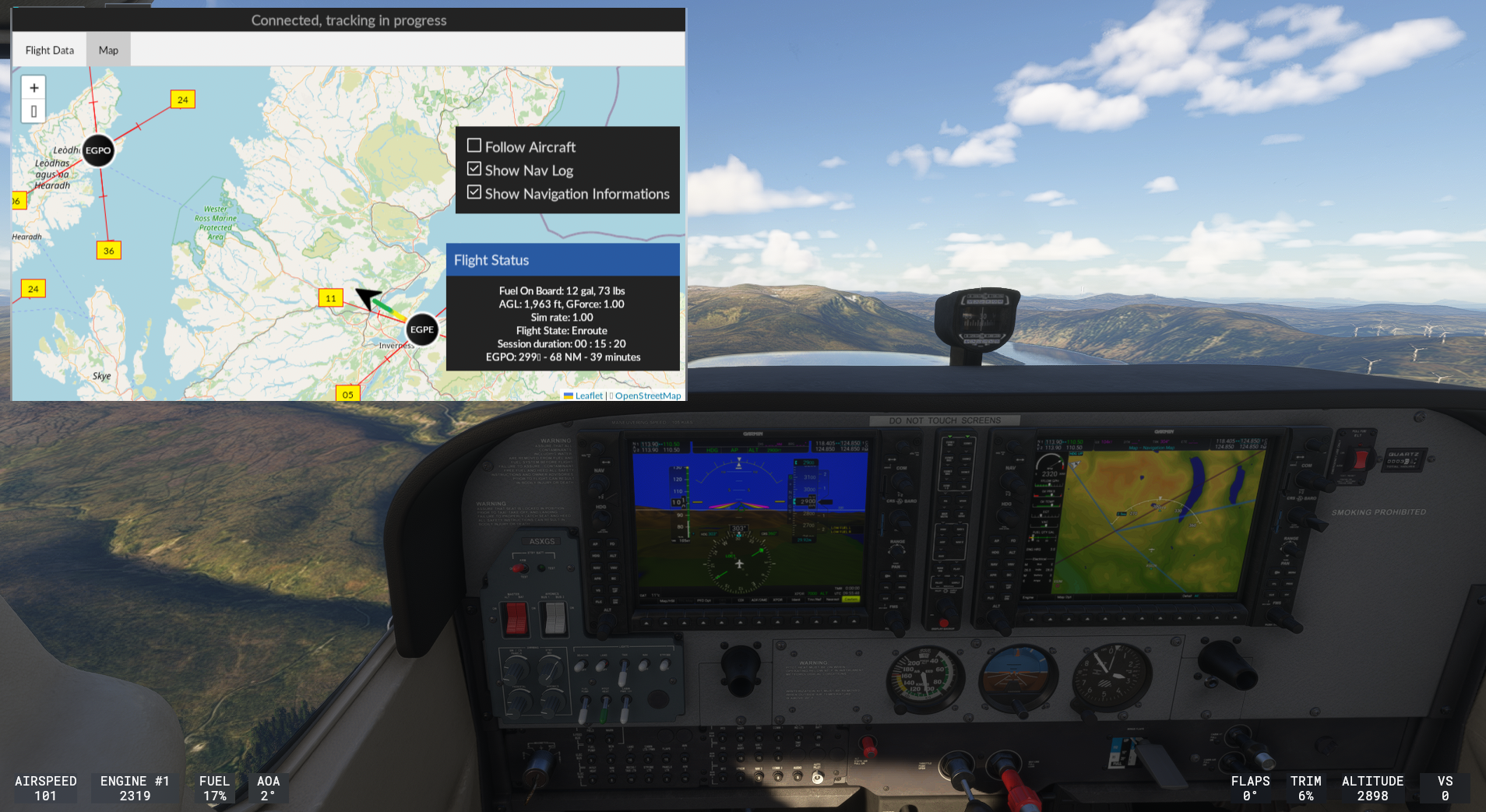
This panel allows you to:
- 🗺️ View your flight map and route while flying
- 📦 Monitor payload, fuel, and flight status
- 🧭 Follow your aircraft position in real-time
- 📋 Check navigation data and live flight progress
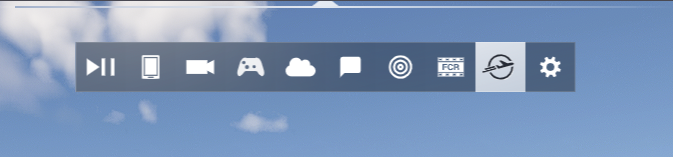
You can enable it anytime from the MSFS toolbar (look for the OnAir icon).
It’s especially useful to follow your flight without switching back to the desktop OnAir app.
💡 Perfect for immersion — keep your mission data visible while staying fully in the cockpit.
¶ 🛬 Ending the Flight
To successfully complete your flight and log it in OnAir, make sure that:
- You are on the ground
- All engines are shut down
- The aircraft is completely stopped
Once these conditions are met:
- OnAir will automatically detect the end of your flight
- You’ll hear an audible message confirming completion
- A flight summary window will appear with your results, XP, and earnings
If needed, you can also manually end the flight by clicking the “Force End Flight” button located in the top-right corner of the Tracking screen:
¶ 🧾 Registering the Flight
After completing your flight, OnAir displays the Register the Flight screen:
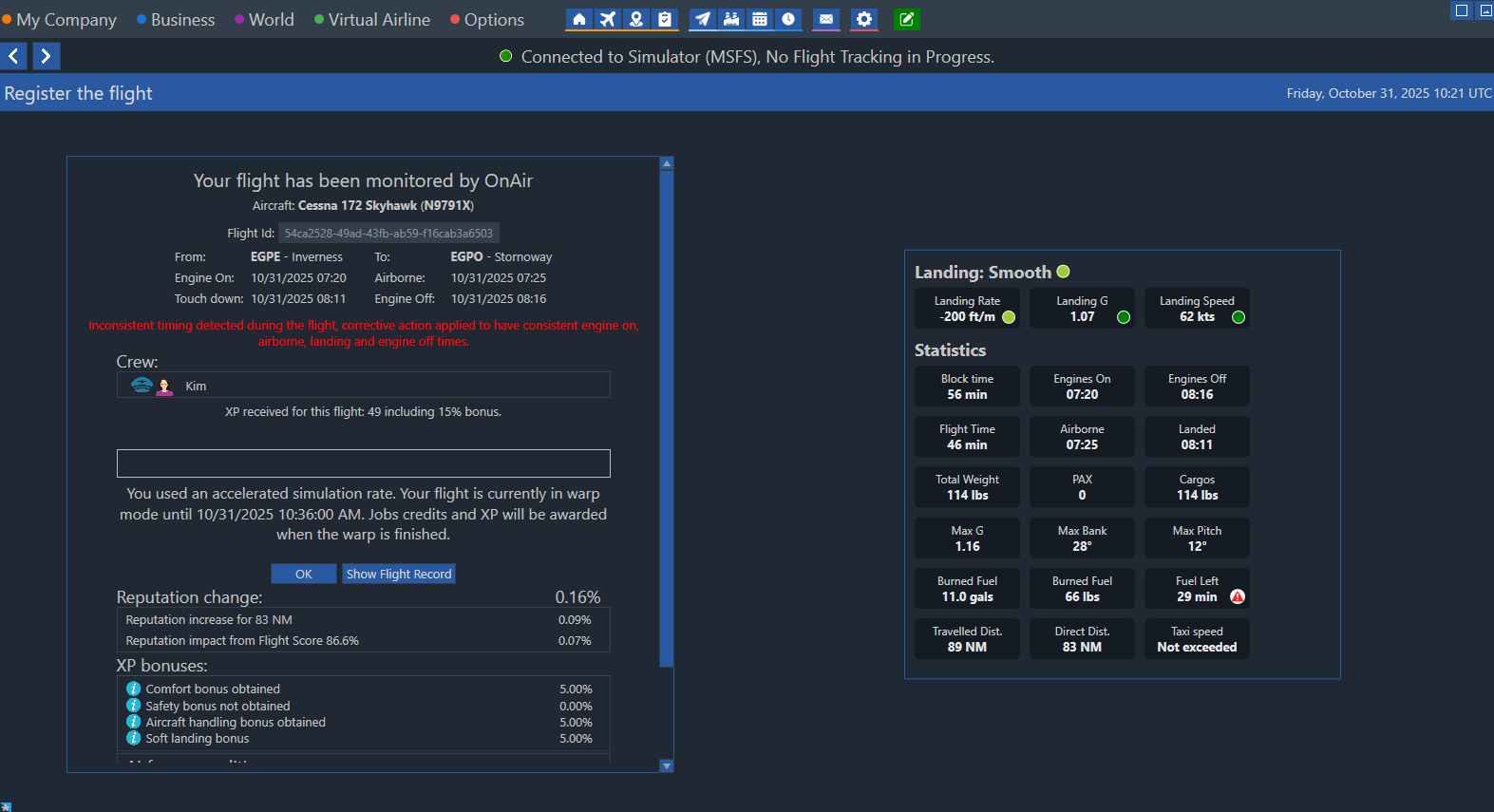
This page provides a detailed summary of your flight:
- ✈️ Flight details (aircraft, departure and destination, times, and crew)
- 🧭 Consistency check — If you used accelerated simulation rate, OnAir will correct any timing inconsistencies automatically
- 📈 XP and bonuses — The XP gained includes any applicable multipliers (e.g., comfort, handling, soft landing)
- 💬 Reputation changes — Based on flight distance and your Flight Score
In the example above, the flight was completed using an accelerated simulation rate.
OnAir detects this automatically and temporarily places your flight in warp mode until the simulated time catches up, as indicated by the message in the summary.
¶ ⚡ Warp Mode
In Cumulus world, you can completely bypass the post-flight warp waiting period.
To enable this option:
- Go to Options → Preferences → Company Configuration
- Activate “Don't Force time in sim”
Once enabled:
- Your aircraft will no longer be held after landing
- Flights completed using time compression will register immediately
- No warp waiting period will apply
⚠️ Important:
- This option is not available in Stratus or Thunder worlds
- It cannot be used if you are playing in Survival Mode
This setting is ideal for players who prefer a smoother workflow when using simulation rate acceleration in Cumulus.
¶ 📊 Flight Statistics Overview
To the right of the summary, you can see your flight performance data:
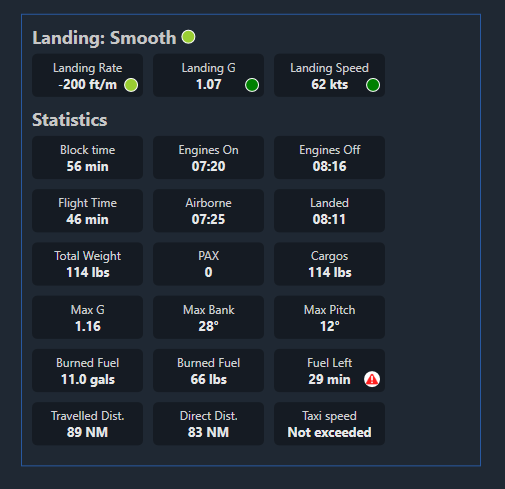
This includes:
- 🧭 Landing details: Rate, G-force, and landing speed
- ⏱️ Timing: Block time, airborne time, engine on/off, landing time
- ⚙️ Performance: Max G, pitch, bank, taxi speed
- ⛽ Fuel: Fuel burned and total remaining
- 📦 Cargo: Weight and distance traveled
💡 Your landing quality (Smooth, Regular, Hard…) directly affects XP and reputation. See the Flight Score section for details.
¶ 🎖️ Bonuses and Wear
At the bottom of the flight summary, you can review all XP bonuses earned during your flight, as well as your aircraft’s condition updates.
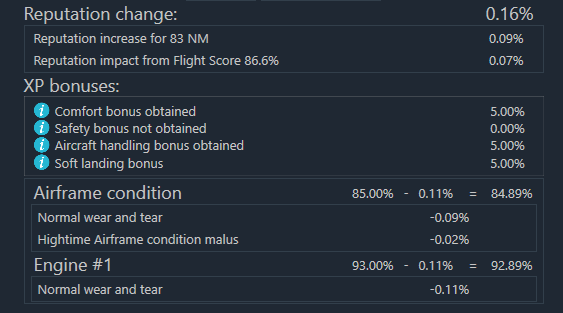
This panel includes:
- ✨ XP Bonuses — Each successful aspect of your flight (Comfort, Handling, Soft Landing, Safety) adds a percentage boost to your total XP earned.
- 🧰 Airframe & Engine Condition — Displays the current health of your aircraft structure and engines, along with wear from the flight.
- ⚙️ Wear Factors — Normal wear is applied after every flight, while additional malus (like High-Time Airframe) can appear when components reach high usage.
💡 Proper flight handling and regular maintenance reduce wear and help maintain aircraft value and performance.
¶ 🏁 After Your Flight
At the bottom of the summary window, you’ll find two options:
-
🔎 Show Flight Record — Opens a detailed log of your flight, including route, altitude, and performance data.
👉 Learn more about the Flight Record → -
✅ OK — Closes the summary and brings you back to your Company Dashboard.
¶ 🆙 Level Up!
Once your first job is completed, you’ll earn experience points (XP) and often reach your first Level Up!
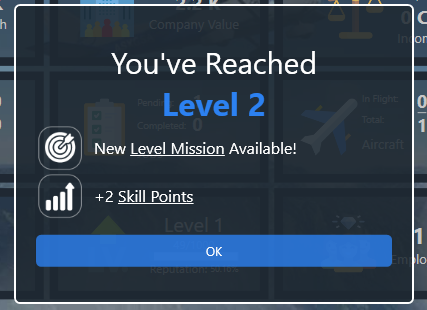
You’ll see a notification like this one, indicating:
- 🎯 A new Level Mission is available
- 🧩 You’ve earned +2 Skill Points to spend in your Skill Tree
👉 You can now explore:
- Grow Your Revenue — Discorver the three icomes paths in OnAir
- Skill Tree — invest your skill points to unlock new gameplay features and company abilities
🎉 Congratulations, Captain!
You’ve completed your first OnAir flight and reached your next milestone — your career has officially taken off!
¶ Watch the overview
