After exploring the Freelance Dashboard, it’s time to take your first job and experience your first tracked flight in OnAir.
¶ 🧭 Step-by-Step Guide
Follow these steps to start your first freelance job and get your flight tracking working properly.
¶ 1️⃣ Start your simulator
Launch your preferred flight simulator (MSFS, X-Plane, P3D, or FSX) and load the aircraft you want to fly at any airport.
For example: KPOC (Brackett Field)
¶ 2️⃣ Open the Logistic Center
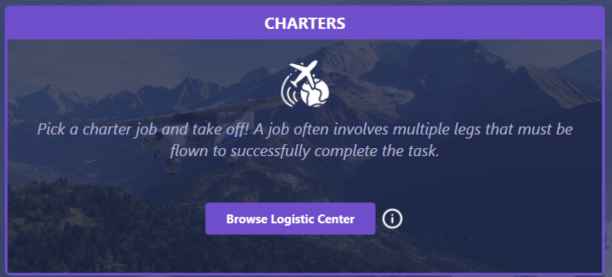
Go back to OnAir and click Browse Logistic Center on your Freelance Dashboard.
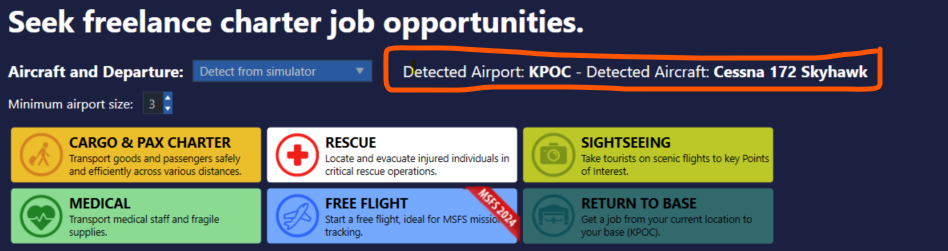
OnAir automatically detects your aircraft and current airport from your simulator.
¶ 3️⃣ Choose Your Job
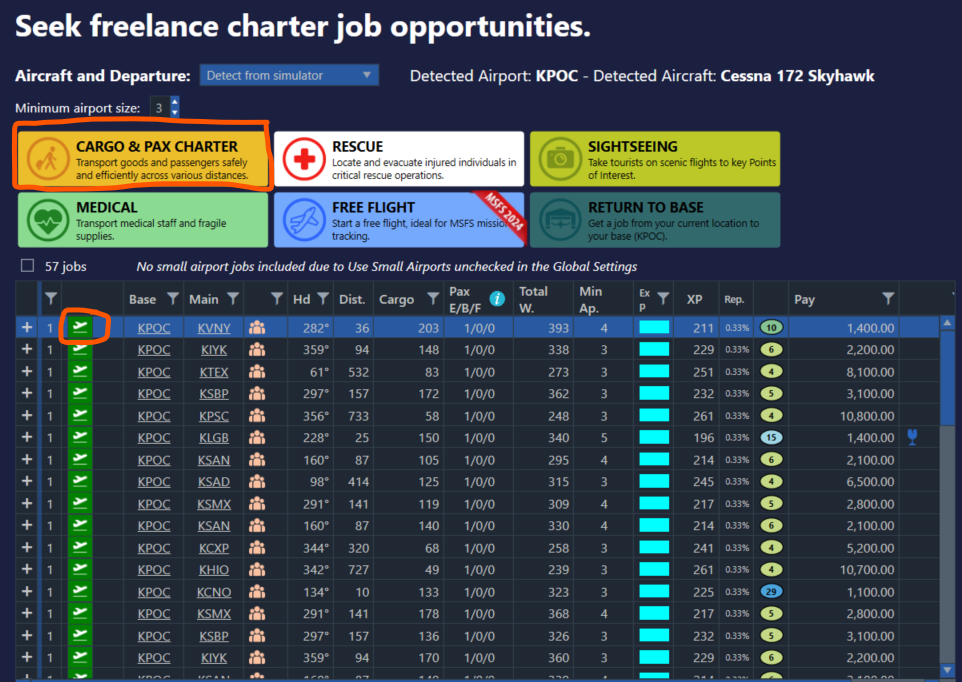
Select the job type you want to fly (Cargo & PAX, Rescue, Sightseeing, Medical, Free flight etc...).
The selected a job from the list:
¶ 4️⃣ Start the Flight Tracking
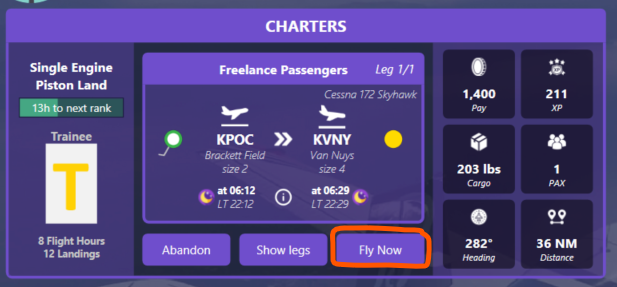
Once your job is selected, click the Fly Now button to start tracking.
OnAir will begin monitoring your flight automatically in real time.
¶ ✅ Completing the Flight
When you land and shut down your aircraft, OnAir will automatically detect flight completion.
Your credits, XP, and reputation will be updated instantly on your Freelance Dashboard.
✈️ Congratulations — you’ve successfully completed your first freelance job in OnAir!