Follow these steps to create your OnAir account, install the application, and start your free 7-day trial.
¶ 👤 1. Create your account
Go to the OnAir account page:
👉 https://www.onair.company/my-account/
- Click Register to create a new account.
- Fill in the registration form with your first name, email address, and password, then confirm your password.
- Check the box to accept the terms and conditions, and click Validate.
¶ 📧 2. Confirm your email
You will receive a confirmation email shortly after registering.
Click the confirmation link inside the message to activate your account.
💡 If you don’t receive any confirmation email after a few minutes, please check your spam folder or contact support at:
https://onairhelp.zendesk.com/hc/en-ca/requests/new
Once your email is validated, you can log in to OnAir with your credentials.
¶ 💻 3. Install OnAir
Install OnAir from the official download page:
👉 https://www.onair.company/Downloads
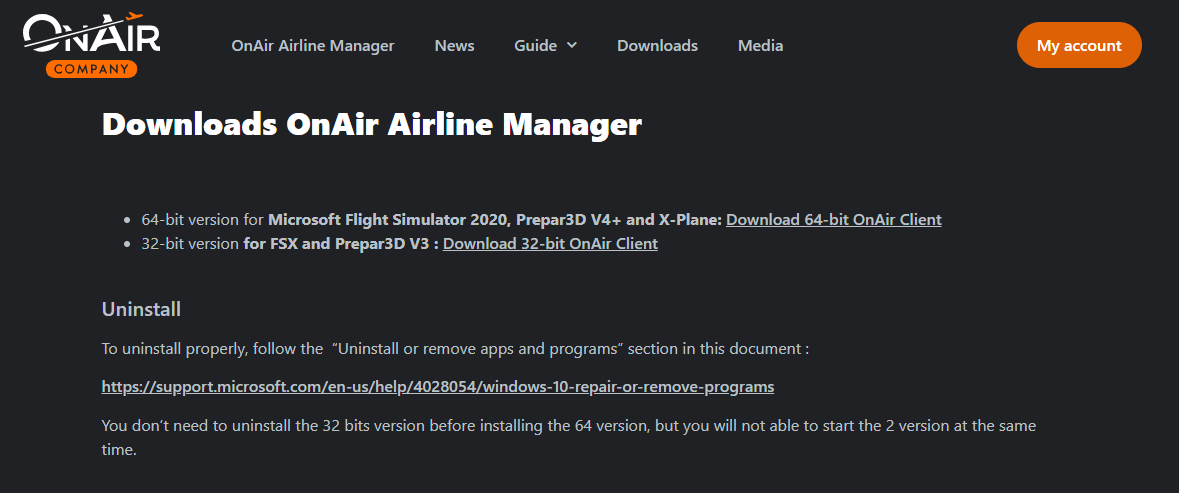
Run the setup.exe file to install the application.
OnAir will automatically fetch the latest version and keep your client up to date.
🎬 Video tutorial:
Watch the installation process step by step here:

💡 This short video explains how to download, install, and update OnAir.
¶ 🚀 4. Log in to OnAir and start your 7-day free trial
Open OnAir on your PC and log in using your newly created account credentials.
You’ll then reach the “Choose Your World” screen.
Click the Start Free 7-Day Trial button on the right to begin your trial period.
This allows you to enjoy a 7-day free trial to test the application and ensure everything runs smoothly on your PC.
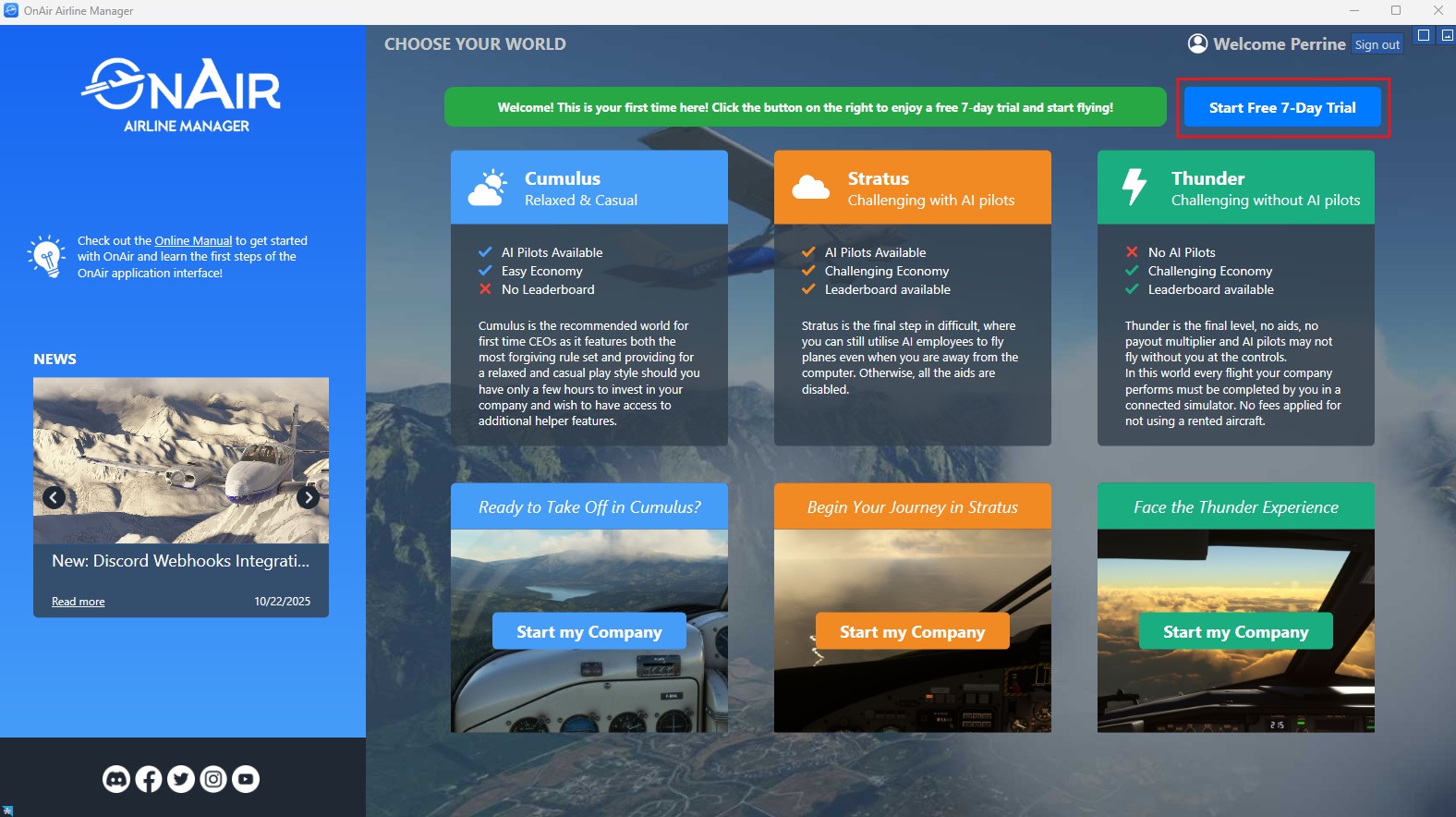
💡 The trial gives you full access to OnAir’s features, so you can explore, start your first company, and experience the game before subscribing.
✅ Once your trial starts, you can create your first company, choose your preferred world — Cumulus, Stratus or Thunder — and begin your OnAir adventure!