Owning an airport in OnAir gives your company long-term strategic advantages and new management tools.
As the airport owner, you can:
- Receive weekly subsidies based on traffic volume
- Activate airport boosts that improve XP gains, job rewards, company routes, freelance routes, industry efficiency, and FBO performance
- Set landing fees and parking fees for pilots using your airport
- Customize the airport’s public description, image, and 3D scenery layout in MSFS
- Support industries and logistics around your hub through strategic placement and boosts
- Influence regional activity and attract more players to your airport
Players who do not own airports experience normal gameplay, but passing through a player-owned airport can grant bonuses depending on the boosts active there.
Your main objective as an airport owner is to increase traffic, since more arrivals and departures generate higher subsidies and make boosts more rewarding for visitors.
To encourage pilots to use your airport, you can:
- Activate attractive boosts that reward players who depart or land at your airport
- Publish advertisements on the airport leaderboard
- Adjust landing and parking fees
- Position and customize 3D buildings visible in MSFS to create a unique airport layout
This system turns airport ownership into a strategic gameplay layer where you can build influence, support industrial operations, and create an attractive hub for other players.
¶ 🧭 How to Take Ownership of an Airport
Open the airport database via:
World → Airports & Basecamps Database
Search for the ICAO code of the airport.
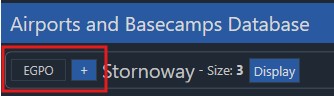
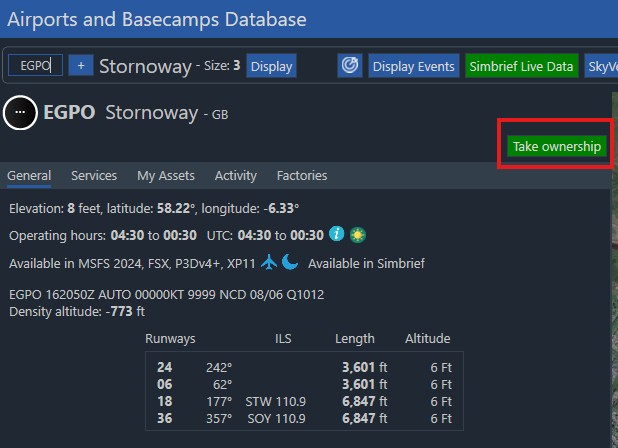
If the airport has no owner, you will see a Take Ownership button:
Clicking it displays a popup showing how many Airport Ownership Kits are required:
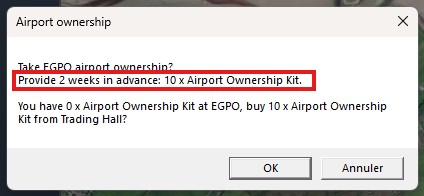
These Kits must be physically present at the airport.
¶ 📦 Obtaining Airport Ownership Kits
Airport Ownership Kits are essential for acquiring and maintaining airports.
You can:
- Buy them in the Trading Hall and Transport them by aircraft or automated logistics
- Produce them using Industries
¶ 🛒 Trading Hall
You can purchase Kits via:
Business → Industries → Trading Hall
Search for Airport Ownership Kit, then buy the required quantity.
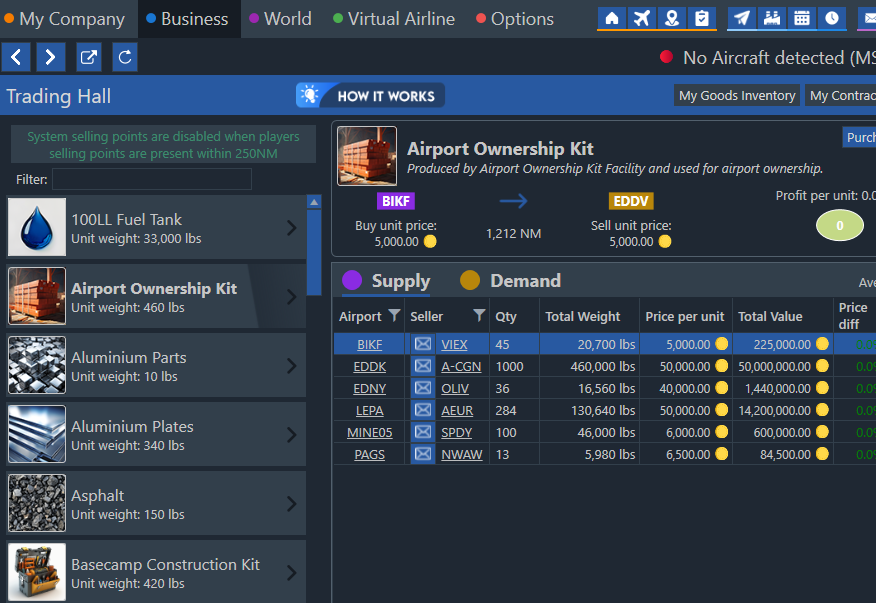
If you clicked Take Ownership without having enough Kits, clicking OK on the popup will automatically redirect you to the Trading Hall with the item pre-selected.
¶ Transporting the Airport Ownership Kit
There are two ways to move Airport Ownership Kits to the airport:
-
By aircraft
Load the Kits into one of your aircraft like regular cargo and fly them to the destination airport. -
By ground/sea transport (automatic)
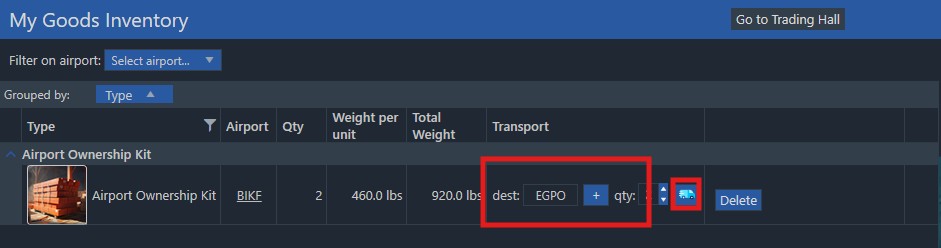
Go to Business → My Goods Inventory, enter the airport ICAO, select the quantity, and click the truck icon.
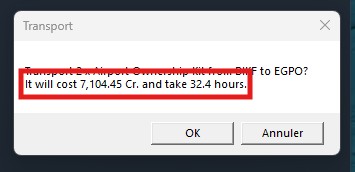
A popup will show the transportation cost and time.
Once the Kits are physically present at the airport, ownership can be confirmed.
¶ 🏭 Producing Your Own Airport Ownership Kits
Instead of buying Airport Ownership Kits from the market, players may manufacture them through Industry production chains.
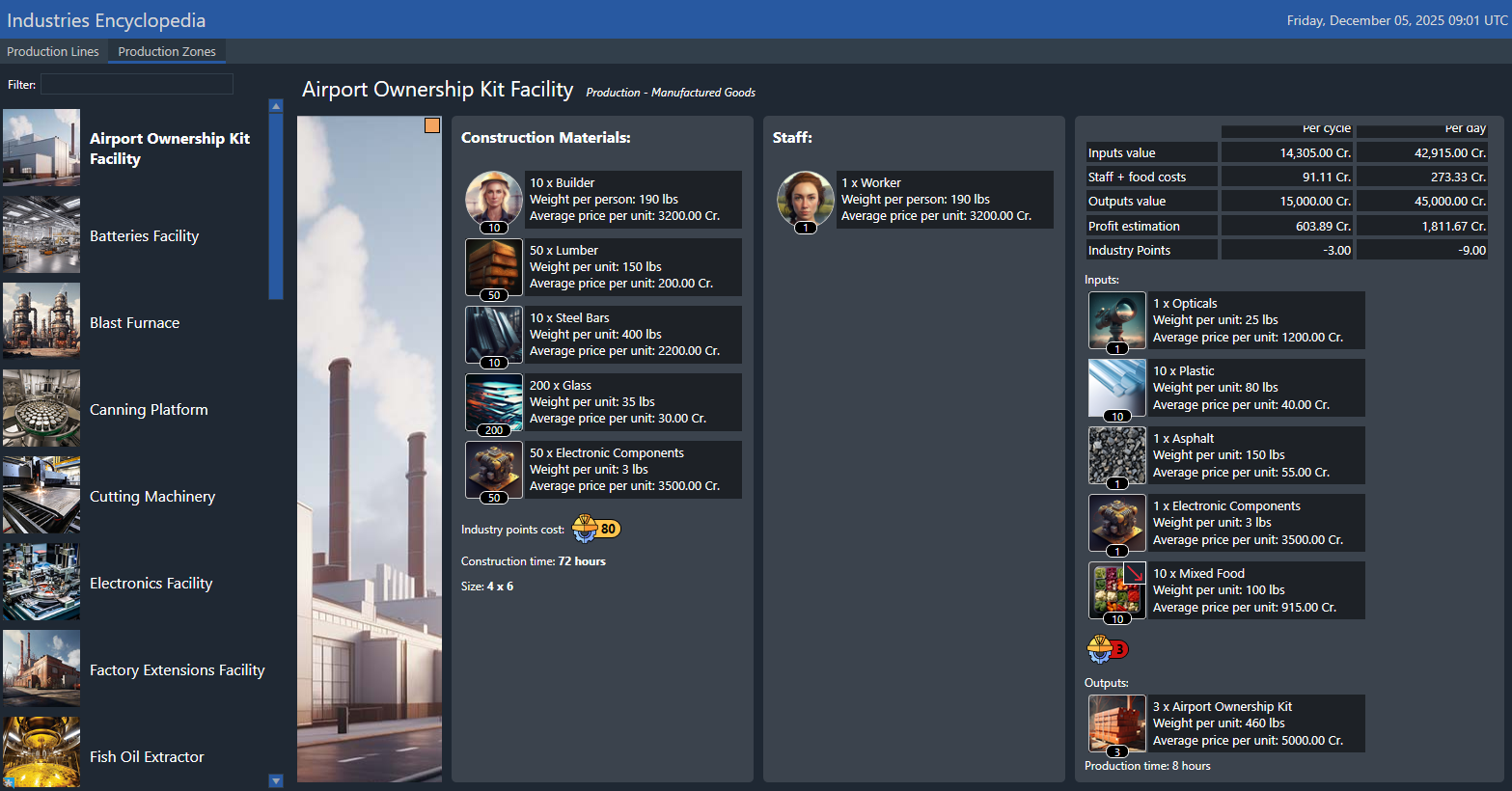
Producing your own Kits can significantly reduce long-term ownership costs, especially for larger airports that require many Kits per week.
In OnAir’s player-driven economy, only player companies supply Airport Ownership Kits.
There are no longer system-generated supply points for this item, meaning:
- Players can fully control local markets
- Prices depend on real player production and demand
- Collaboration between airport owners and industrial companies becomes essential
This system gives strong purpose to Industry gameplay: factories can specialize in producing valuable goods such as Airport Ownership Kits, supporting both your own operations and other players.
➡️ Full Industry documentation will be available soon.
Once the required Kits are present at the airport, return to the airport page and confirm ownership.
¶ 🛠️ Managing Your Airport
Once you have successfully taken ownership of an airport, it will appear in your company list:
To manage your owned airport:
- Go to
My Company → My Airports & Basecamps - Click the ICAO code of your airport to open the detailed management page
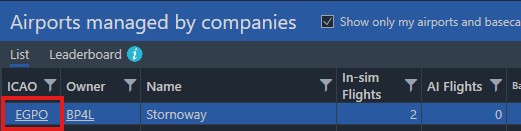
You now have access to several configuration tabs.
¶ 🏷️ Properties tab — Financial & Public Settings
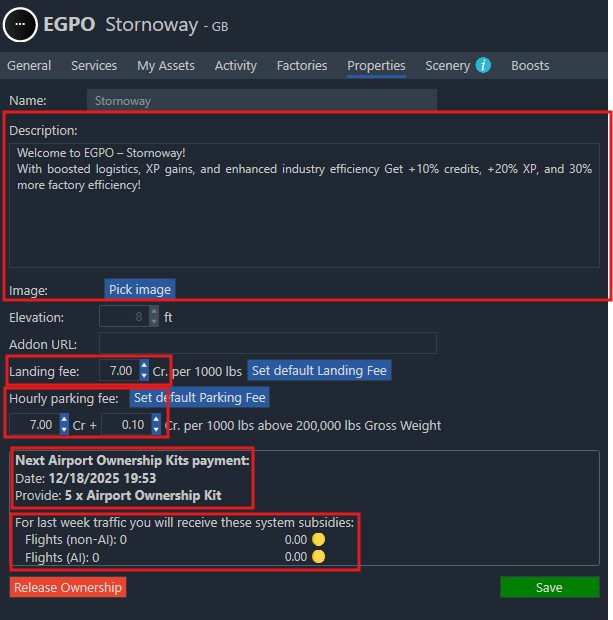
The Properties tab is where you configure the administrative and financial aspects of your airport.
Here you can:
- Add a public description (visible to all players)
- Upload an image to display on the airport’s public info page
- Set landing fees
- Set hourly parking fees
¶ 📦 Weekly Ownership Cost (paid in Airport Ownership Kits)
Each airport size requires a weekly payment of Airport Ownership Kits to maintain ownership.
| Airport Size | Weekly Cost (Kits) |
|---|---|
| Size 0 | 1 Kit |
| Size 1 | 2 Kits |
| Size 2 | 3 Kits |
| Size 3 | 5 Kits |
| Size 4 | 25 Kits |
| Size 5 | 50 Kits |
If you do not provide the required Kits before the due date, you automatically lose ownership of the airport.
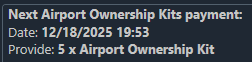
The next scheduled payment is visible in the Properties tab:
¶ 💰 Weekly Subsidies (traffic income)
As the airport owner, you receive system subsidies for all flights departing or arriving at your airport.
These subsidies reward you for contributing to regional economic activity.
| Airport Size | In-Sim Flight Subsidy |
|---|---|
| Size 5 | 2000 Cr |
| Size 4 | 1800 Cr |
| Size 3 | 1600 Cr |
| Size 2 | 1400 Cr |
| Size 1 | 1200 Cr |
| Size 0 | 1000 Cr |
You also receive 5% of these values for AI flights.
All subsidies for the previous week appear in the Properties tab:

¶ ⚡ Boosts Tab — Airport Bonus Management
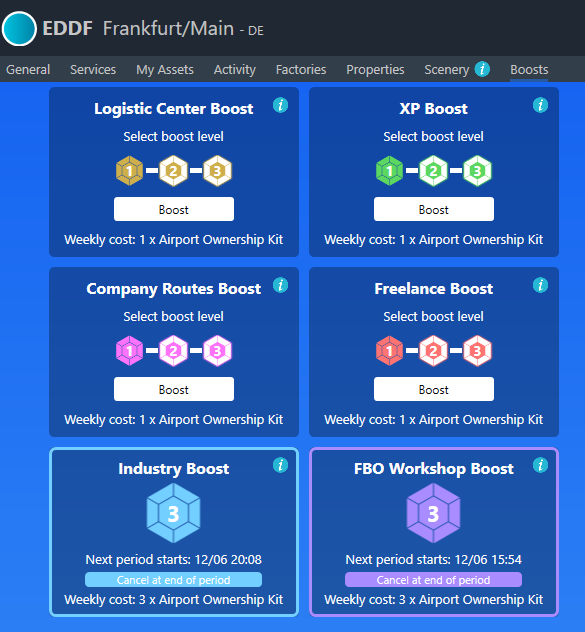
Owning an airport allows you to activate up to six different boosts, each with three levels.
Higher levels give stronger bonuses but also increase the weekly cost
(1 Airport Ownership Kit per boost level per week).
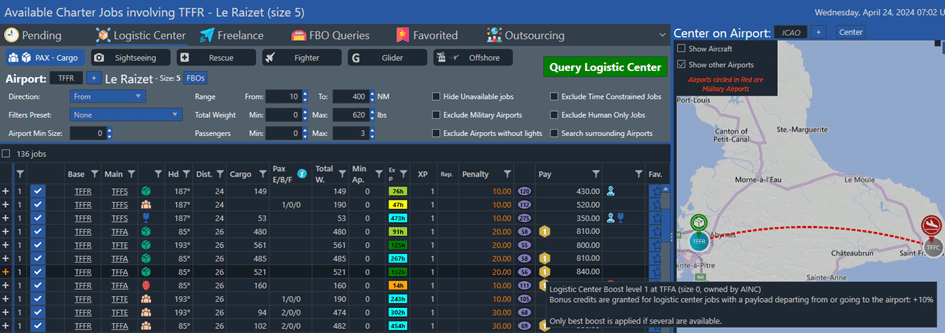
Boost icons appear in different parts of the interface, for example in the Logistic Center:
They can also appear in airport selection menus:

¶ Boost Details
¶ ⭐ Logistic Center Boost
This boost increases the credits earned from Logistic Center jobs departing from or arriving at the airport.
| Boost Level | Airport Size 0 | Size 1 | Size 2 | Size 3 | Size 4 | Size 5 |
|---|---|---|---|---|---|---|
| Level 1 | +10% | +10% | +5% | +4% | +3% | +2% |
| Level 2 | +20% | +15% | +10% | +7% | +4% | +3% |
| Level 3 | +30% | +20% | +15% | +10% | +5% | +4% |
¶ ⭐ XP Boost
Adds bonus XP for in-sim flights departing from or landing at the airport.
| Boost Level | XP Bonus |
|---|---|
| Level 1 | +10% |
| Level 2 | +20% |
| Level 3 | +30% |
¶ ⭐ Company Routes Boost
Applies to your Custom Company Routes using the airport.
| Boost Level | Bonus Credits | Route Reliability Growth |
|---|---|---|
| Level 1 | +10% | +50% |
| Level 2 | +20% | +100% |
| Level 3 | +30% | +150% |
¶ ⭐ Freelance Route Boost
Applies to Freelance Routes using the airport.
| Boost Level | Bonus Credits | Freelance Rank Growth |
|---|---|---|
| Level 1 | +50% | +50% |
| Level 2 | +100% | +100% |
| Level 3 | +150% | +150% |
¶ ⭐ Industry Boost
Improves the efficiency of all factories located at the airport.
| Boost Level | Production Efficiency Bonus |
|---|---|
| Level 1 | +10% |
| Level 2 | +20% |
| Level 3 | +30% |
¶ ⭐ FBO Workshop Boost
Improves the performance of all FBO workshops at the airport.
Logistic Queries Credit Bonus:
| Boost Level | Airport Size 0 | Size 1 | Size 2 | Size 3 | Size 4 | Size 5 |
|---|---|---|---|---|---|---|
| Level 1 | +10% | +10% | +5% | +4% | +3% | +2% |
| Level 2 | +20% | +15% | +10% | +7% | +4% | +3% |
| Level 3 | +30% | +20% | +15% | +10% | +5% | +4% |
Maintenance Speed Bonus:
| Boost Level | Maintenance Speed Bonus |
|---|---|
| Level 1 | +10% |
| Level 2 | +20% |
| Level 3 | +30% |
Only the highest applicable boost is used if several boosted airports are involved.
¶ 🏗️ Scenery Tab — Airport 3D Layout Management
The Scenery tab gives airport owners full control over how their airport appears inside Microsoft Flight Simulator (MSFS).
You decide which elements are displayed and where they are placed, allowing you to create a custom environment that reflects your vision.
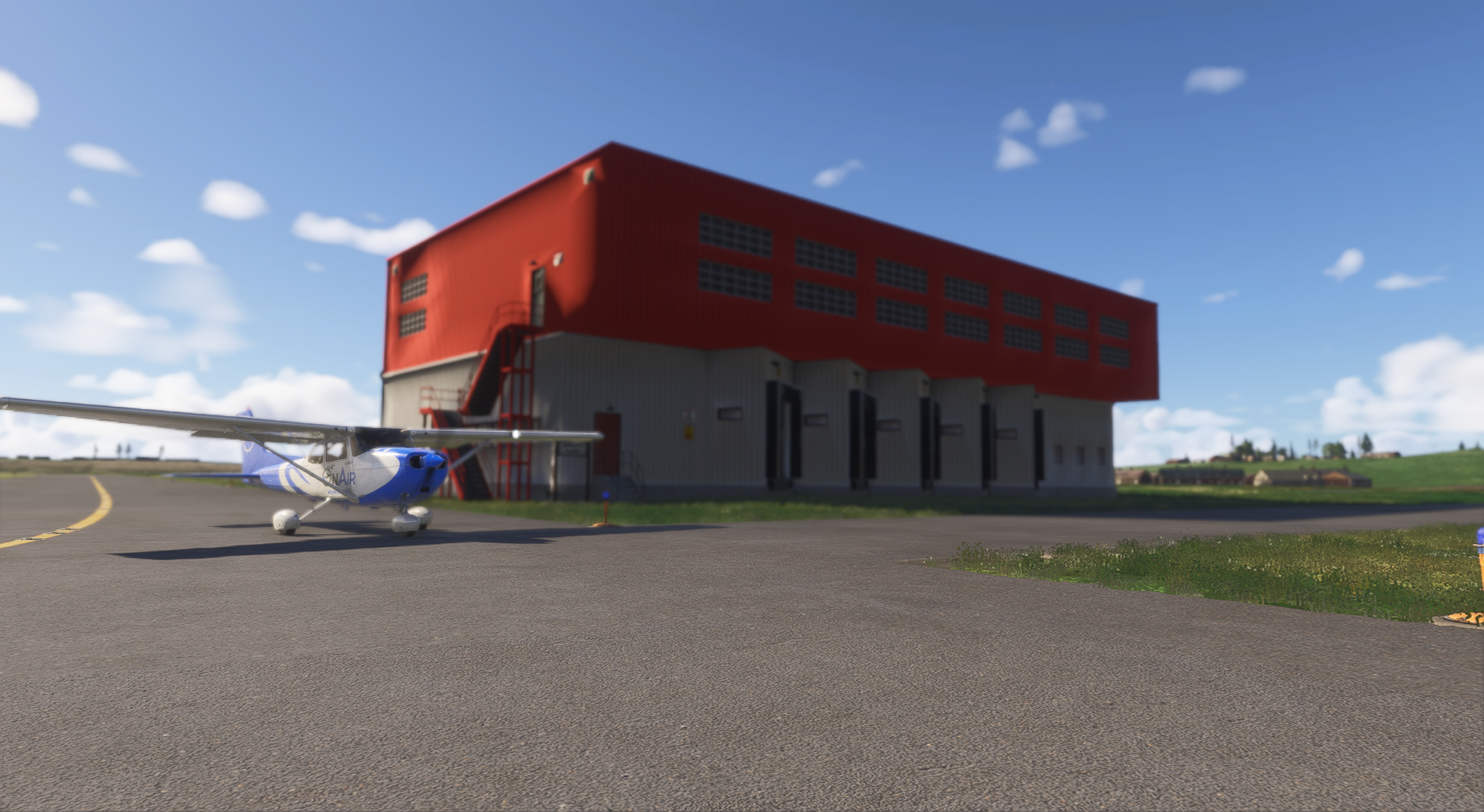
By default, the airport contains no additional 3D scenery.
Once you begin placing objects, they become visible in MSFS for all OnAir players, regardless of the world they are playing in.
¶ 🧭 Available Objects
The list of objects you can place depends on the factories and production zones installed at the airport.
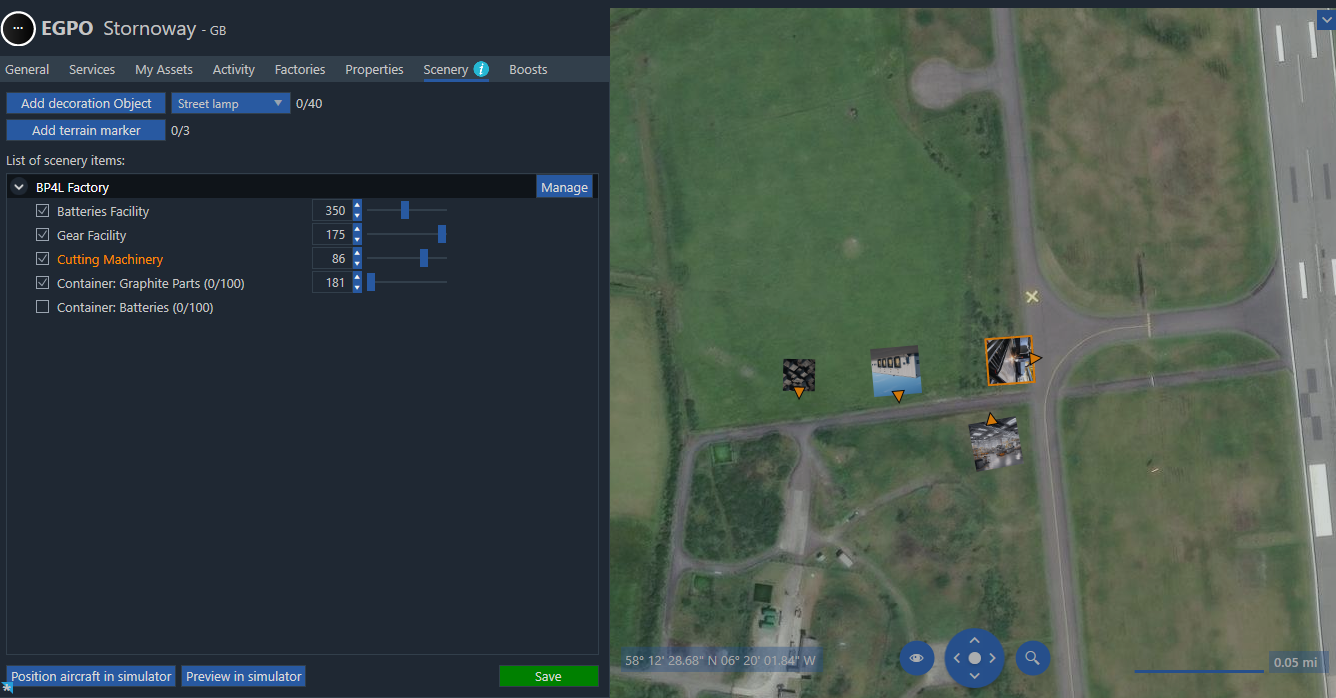
You have access to:
- Factory machines (Hunting Camp, Fishing Camp, Mining, etc.)
- Containers
- *Decorative elements
These objects affect only the visual appearance of the airport in MSFS and have no impact on production efficiency or gameplay.
¶ 🛠️ Placing and Editing Objects
Each available object can be positioned exactly where you want it.
From the Scenery tab, you may:
To make an object appear:
- Tick the checkbox next to the item in the left panel
→ This enables the object and makes it visible on the map.
Once enabled, you can:
- Move it freely to refine the layout
- Rotate it using the slider for proper alignment
- Hide it by unticking the checkbox
Once applied, changes appear in MSFS as soon as scenery is refreshed.
¶ 👀 Previewing Your Placement in MSFS
At any time, you can check your scenery directly inside Microsoft Flight Simulator:
- Click the button Preview in simulator
→ The object layout is instantly sent to MSFS.
If you move or rotate an object afterward:
- You must click Preview in simulator again
→ This refreshes the scenery so you can see the updated placement.
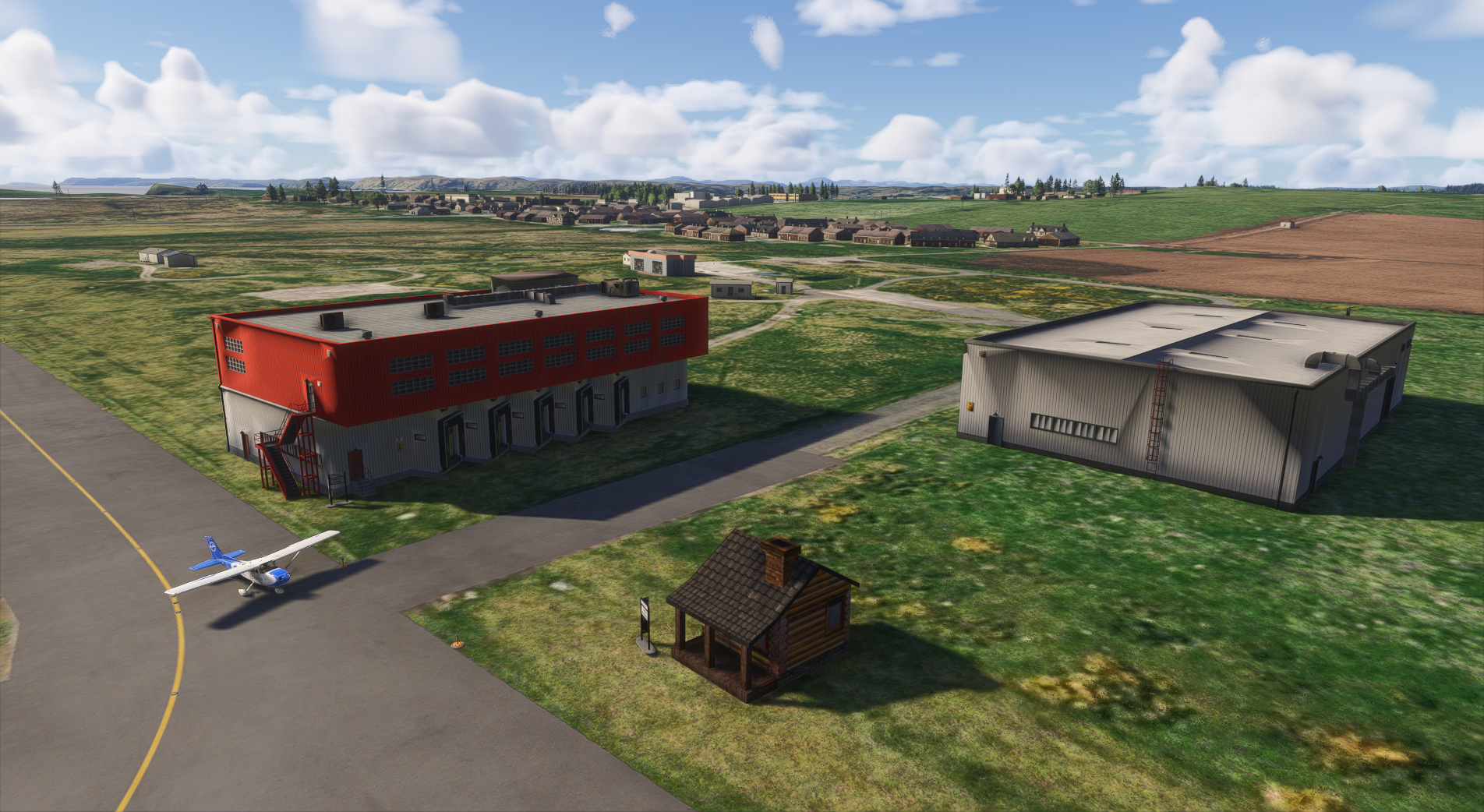
This allows you to fine-tune scenery positioning with real-time visual feedback.
¶ 🖼️ Example Use Cases
You can use the Scenery tab to:
- Create a tidy industrial zone by grouping machines and containers
- Build an immersive environment for MSFS flying
- Organize production elements away from taxiways or runways
- Add decorations to personalize the area
- Keep the airport clean and open by placing only essential objects
¶ 🏆 Airport Leaderboard (Airports Managed by Companies)
OnAir includes a public Airport Leaderboard showcasing all airports owned and managed by player companies.
You can access it via:
My Company → My Airports and Basecamps → Leaderboard
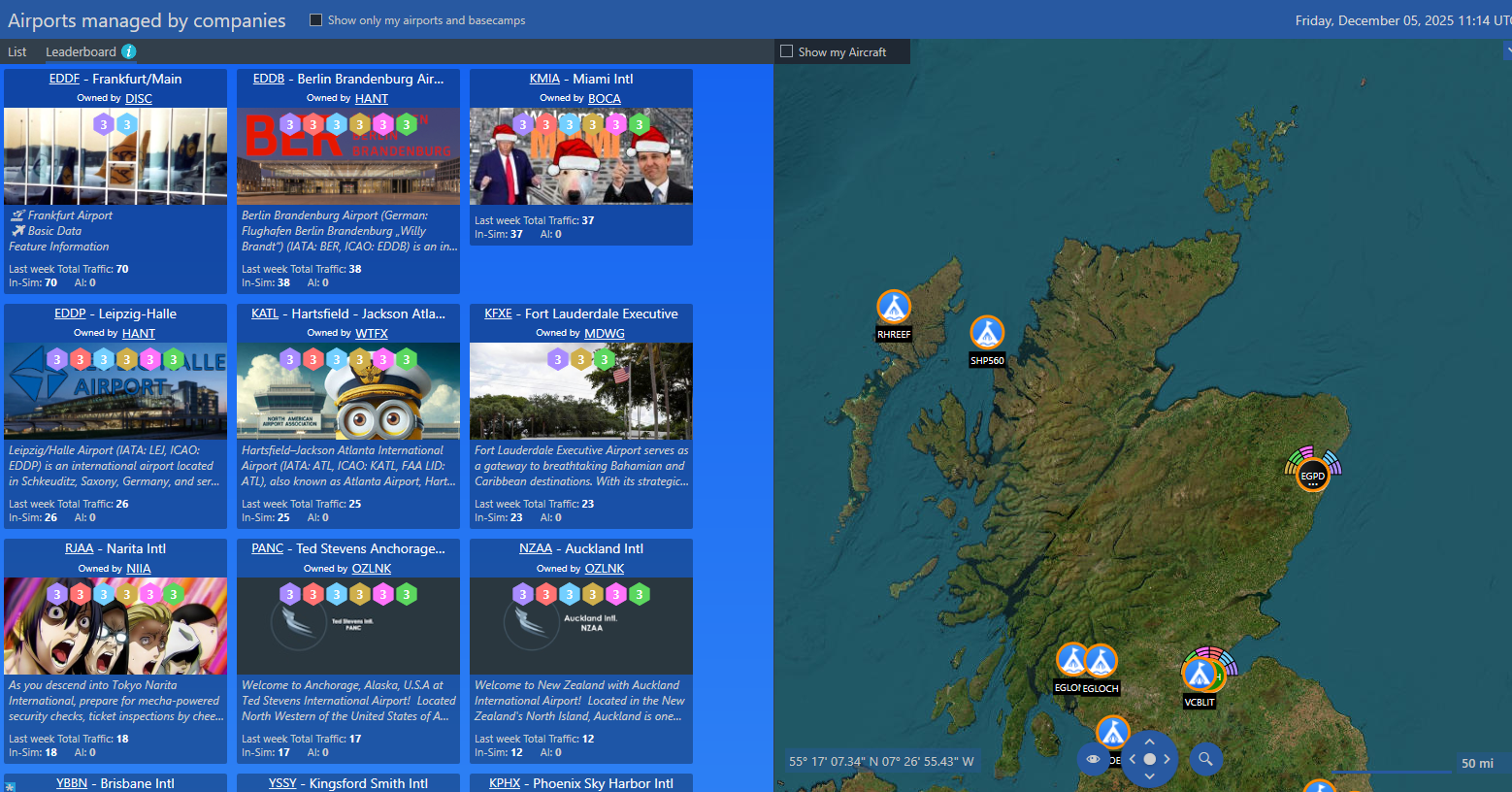
The leaderboard is a great tool to:
- Promote your airport to other players
- Track how your boosts and fees influence traffic
- Discover active hubs that provide good bonuses
- Identify airports with industries or interesting scenery setups
- Build partnerships or logistics routes with other companies
Airport visibility can encourage more pilots to land at your hub — which means more subsidies and better boost value.
¶ 🌍 What the Leaderboard Shows
Each airport entry displays:
- Airport banner (image set by the owner)
- Owner company name
- Boosts currently active (shown as colored icons)
- Airport description (written by the owner)
- Last week’s total traffic
- ✈️ In-sim flights
- 🤖 AI flights
This page gives visibility to airport owners and helps pilots discover interesting, boosted, or popular hubs.