Before you can complete your first job in Advanced Career Mode, you’ll need an aircraft.
You can either rent, lease, or buy one, but for beginners, renting a small and reliable plane like the Cessna 172 is the best choice.
¶ 🧭 Step 1 – Open the Aircraft Market
In the OnAir app, go to:
World → Buy/Lease/Rent Aircraft
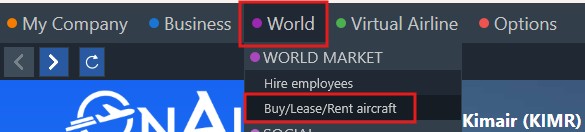
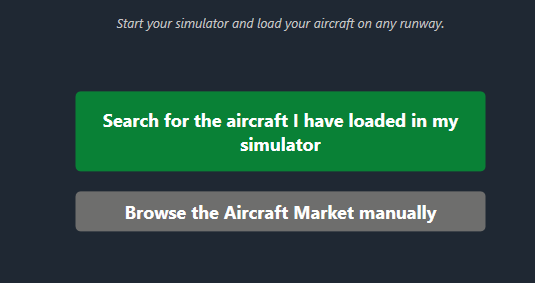
You’ll then see two options:
-
🟩 Search for the aircraft I have loaded in my simulator
→ OnAir will automatically detect the aircraft currently loaded in your simulator.
(Make sure your sim is running and the aircraft is loaded on a runway.) -
🩶 Browse the Aircraft Market manually
→ Lets you explore all aircraft available to rent, lease, or buy directly in OnAir.
💡 If it’s your first flight, we recommend using the simulator search option — it’s faster and ensures full compatibility with your current aircraft.
¶ 🔍 Step 2 – Search for Your Aircraft Manually
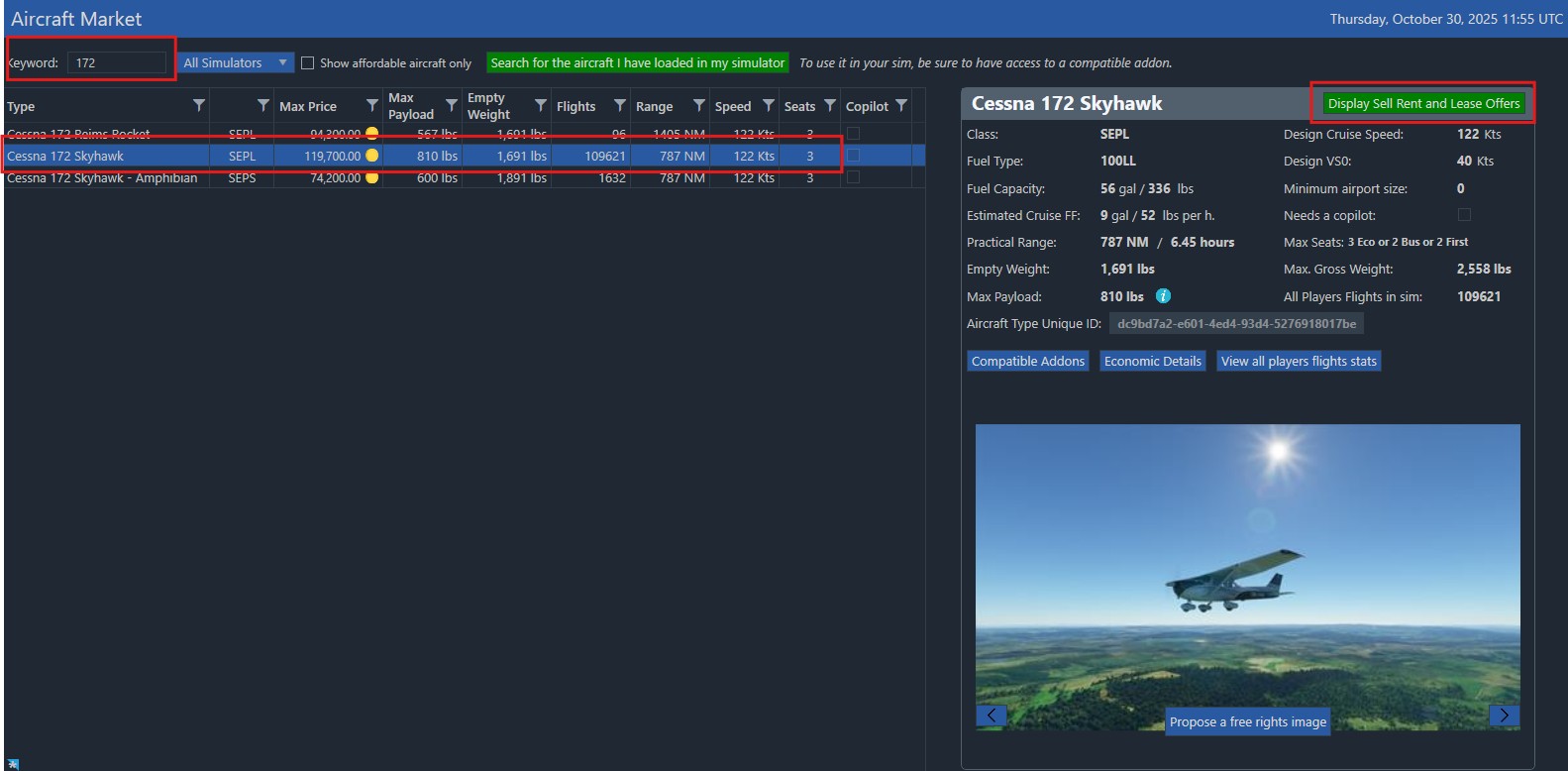
Here you can filter the database manually.
At the top of the screen:
- Use the Keyword box — type
172 - Leave Simulator as “All simulators”
- You can also tick Show affordable aircraft only
Select Cessna 172 Skyhawk (not Amphibian) and click Display Sell, Rent and Lease Offers.
¶ 🗺️ Step 3 – Choose Your Airport
On the next screen, OnAir will prefill your pilot’s location automatically.
If you want to search around another airport, enter the ICAO code in the “Search Airport” field and click Search Aircraft Database to update the list.
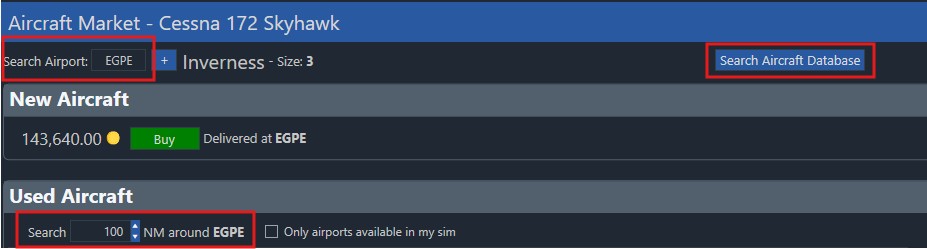
Look for aircraft within 0 NM of the airport you specified — this means they’re located directly at that ICAO.
💡 Note that you get one free teleport for your first aircraft rental, so you can always reach your plane instantly.
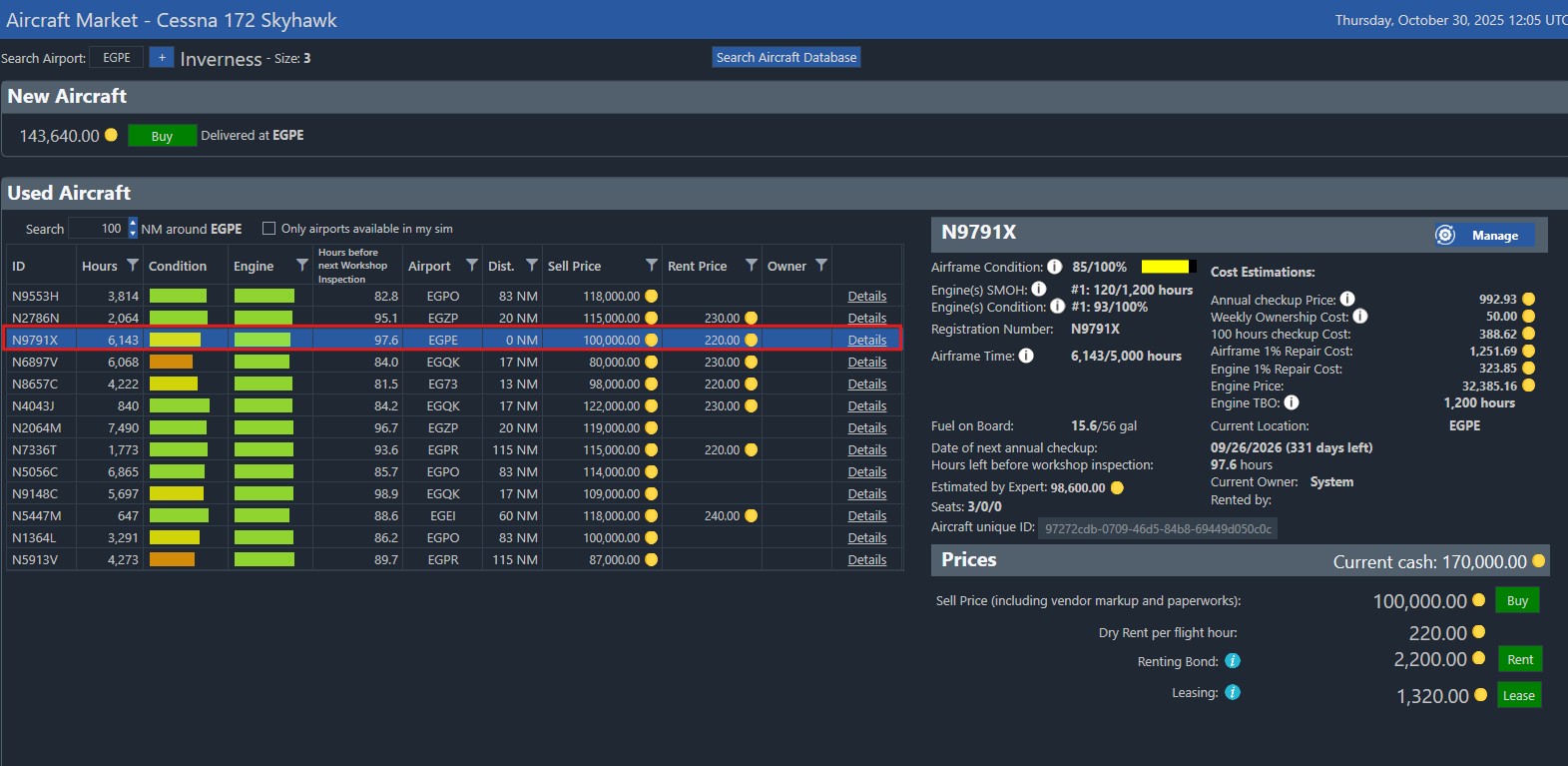
¶ 🧾 Step 4 – Check Aircraft Details
When you selecte a aircraft, you’ll see:
- The aircraft’s registration and condition
- Dates for the next annual checkup and 100-hour inspection
Avoid planes that are overdue or have a red warning icon — they can’t be used for commercial flights until maintenance is completed.
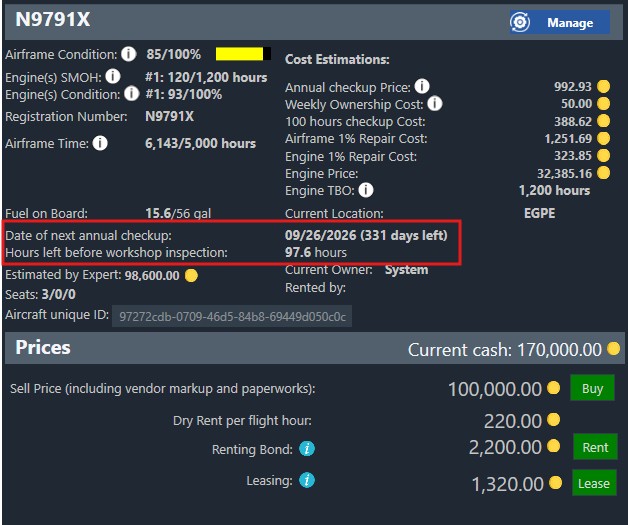
⚠️ Always check the maintenance status before renting — an overdue aircraft can block your progress.
¶ 💰 Step 5 – Understand the Rental Costs
At the bottom right, review the Prices section:
- Dry Rent per Flight Hour — the cost you’ll pay per hour of flight
- Renting Bond — a refundable deposit (usually equal to 10 flight hours)
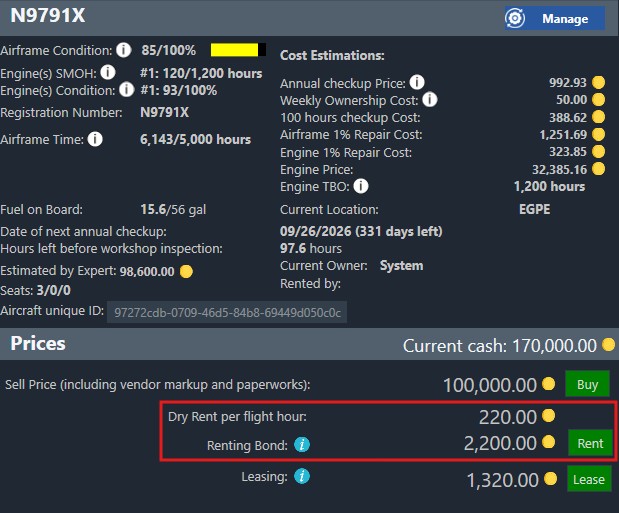
For a C172, both values will easily fit within your budget.
Click Rent to proceed.
¶ 🧳 Step 6 – Confirm and Teleport
A confirmation window will appear with final details.
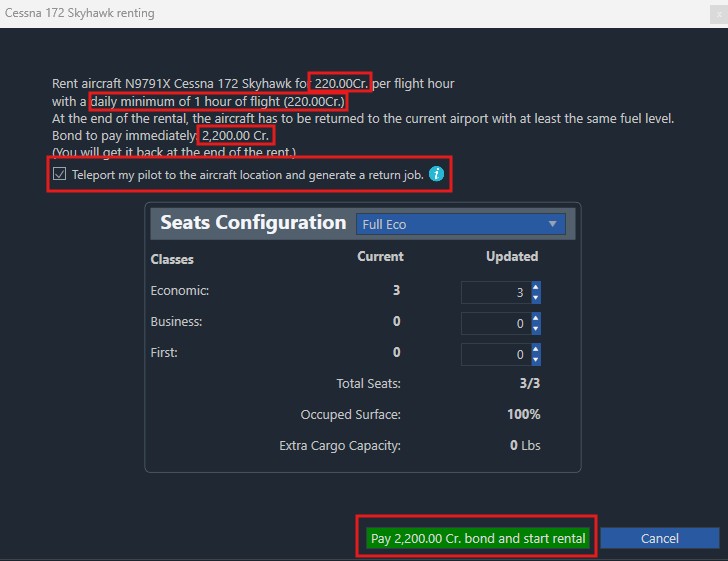
- The first line shows your daily minimum hours — even if you don’t fly, you’ll be charged for that minimum.
- For small planes, this amount is low, but avoid leaving your aircraft unused for too long.
✅ If this is your first rental, check the option:
“Teleport my pilot to the aircraft location and generate a return job.”
This will instantly move your pilot to the aircraft and create a job back to your home airport — perfect for your first flight!
Click Confirm to finalize your rental.
You’ll be taken to the My Aircraft screen, where your new plane now appears.
¶ 🎬 Watch the overview

💡 The same steps apply if you want to lease or buy an aircraft — simply click the corresponding button in the aircraft details panel instead of “Rent”.
👉 Continue to the next step:
Finding Your First Job →