Now that you’ve selected your first job, it’s time to prepare your aircraft and get ready to earn your first real income as a company!
¶ ✈️ Step 1 — Access the Prepare Aircraft Screen
Go back to your My Aircraft list
(Alt + A or use the Aircraft shortcut at the top of the OnAir application).
Next, click the Prepare button located on the right side of your aircraft’s row.

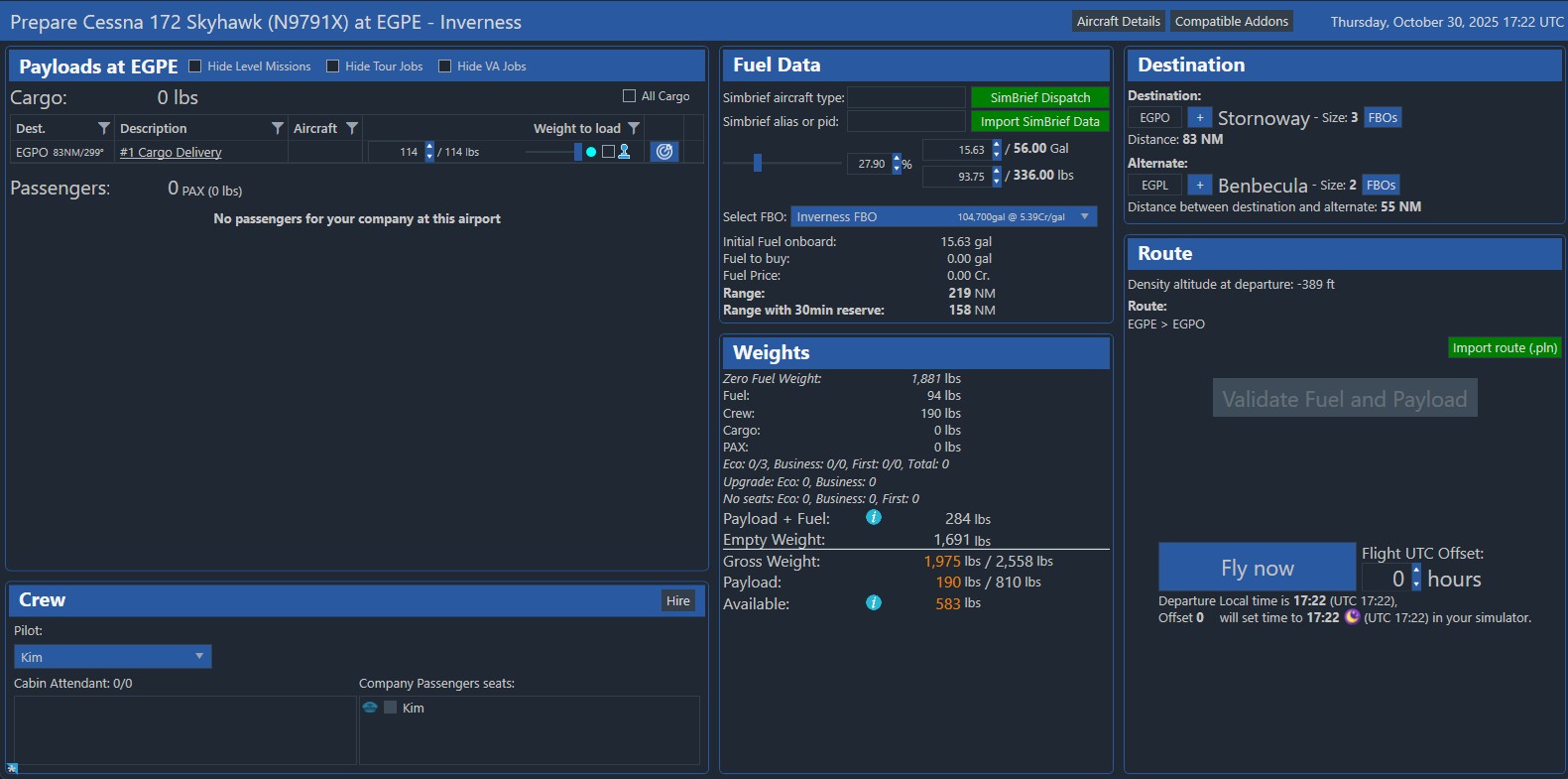
You’ll arrive on the Prepare Aircraft screen — here you can manage:
- Payload and cargo
- Fuel quantity
- Crew setup
- Destination airport
💡 OnAir doesn’t require you to land at the designated airport — any successful landing is valid. However, undelivered cargo will remain onboard until you reach the correct destination.
¶ 📦 Step 2 — Load Your Payloads
In the Payloads section, select which shipments to load onto your aircraft.
You can also split large loads into multiple legs if needed.
Tick the checkbox next to each payload you wish to carry.
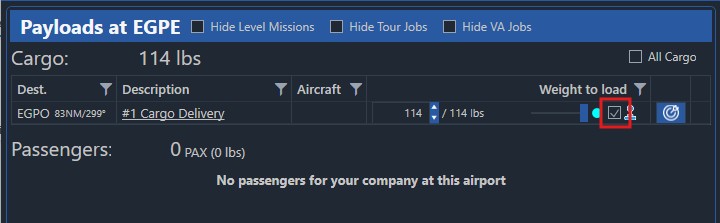
When you select a Payload:
- The destination and alternate airport fields are automatically filled in the Destination section.
- You can still edit them manually if needed.
You’ll also see:
- The destination ICAO code
- The distance and bearing from your current airport
💡 Use this info to estimate how much fuel you’ll need for the flight.
¶ ⛽ Step 3 — Set Your Fuel
The Fuel Data section allows you to set up your aircraft’s fuel quantity and plan your range precisely.
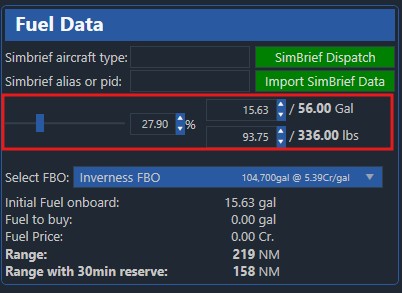
In the Fuel section, you can define your desired fuel level using:
- A slider
- A percentage of full tanks
- Or direct entry in US gallons or pounds
At the bottom, you’ll see:
- The fuel cost
- The total quantity
- The estimated flight range
💡 Choose your departure FBO from the dropdown — fuel prices vary by location.
¶ 🧮 SimBrief integration
If you use SimBrief for flight planning, OnAir can automatically import your fuel and route data.
✈️ This saves time and ensures your OnAir fuel quantity matches your actual SimBrief flight plan.
👉 Learn more about this integration here:
Using SimBrief with OnAir →
¶ ⚖️ Step 4 — Check the Weights
The Weights panel shows how much weight is added by:
- Cargo
- Crew
- Fuel
- Passengers
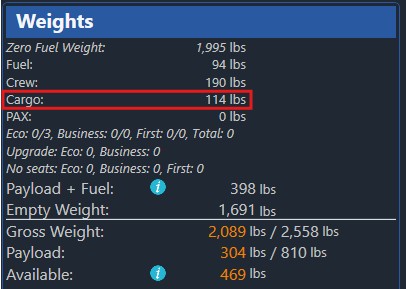
At the bottom, you’ll find your:
- Gross Weight (total takeoff weight)
- Payload Capacity
If either turns red, you’ve exceeded the limits — reduce your cargo or fuel.
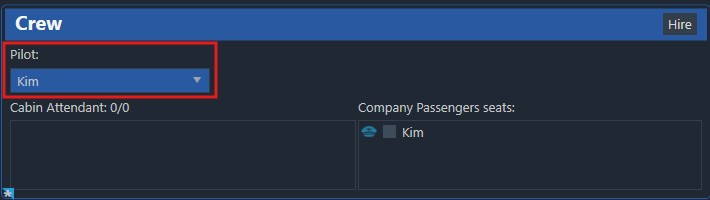
¶ 🧑✈️ Step 5 — Review Your Crew
In the Crew section, you can manage who’s on board.
For now, your main character will automatically serve as the pilot and no other crew is needed.
¶ 🗺️ Step 6 — Choose Your Destination
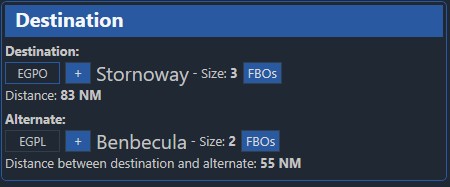
The Destination panel allows you to confirm where you’ll fly.
OnAir automatically selects an alternate airport, but you can change it if you wish.
¶ ✅ Step 7 — Validate Fuel and Payload
In the Route section, click Validate Fuel and Payload to confirm your loading and refueling.
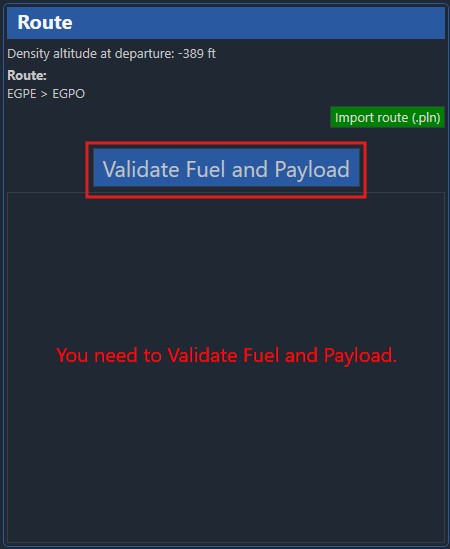
By default, Payload and fuel are loaded instantly.
This behavior is controlled by a setting called “Instant Cargo, PAX and Fuel Loading”, which is enabled by default.
If you prefer a more realistic experience — where loading and refueling take actual time — you can disable this option:
Go to Options → Preferences → Company Configuration → Company Control Panel
and uncheck “Instant Cargo, PAX and Fuel Loading”
¶ 🚀 Step 8 — Start Your Flight
Once your fuel and payload are validated, you’re ready to fly!
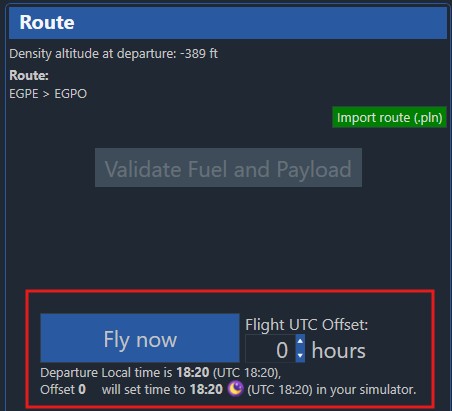
If you are the assigned pilot, you’ll only see the Fly Now button available — since you’re the one taking control of the aircraft.
(If an AI pilot were assigned instead, you would see the Start AI Flight option.)
¶ ⏰ Adjusting the Flight UTC Offset
Just below the Fly Now button, you can adjust the Flight UTC Offset →.
This setting allows you to shift the in-sim time for your flight.
For example, if you’re flying late at night in real life but prefer daylight conditions, you can move the offset to make it daytime in your simulator.
💡 The offset only affects your simulator’s time — not the in-game economy or other players.
⚠️ This setting cannot be changed while a flight is in progress.
Once ready, click Fly Now to start tracking your flight in OnAir and take off from your simulator!
¶ 🎬 Watch the overview

👉 Continue to the next step:
Tracking Your Flight in OnAir →.